Film cameras
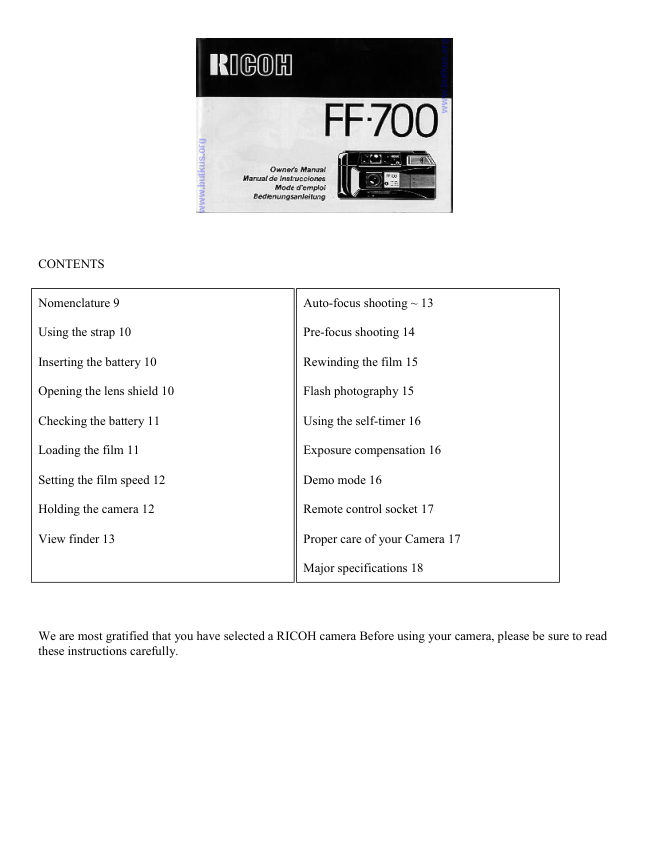
Ricoh FF-700 camera User manual
User manual for Ricoh FF-700 camera. 13 pages in English. Read the original PDF, download or print a copy without registration.
13 pagesEnglish1.7 MB PDF
Loading your manual…Open PDF directly
Document details
- Brand
- Ricoh
- Model / document
- Ricoh FF-700 camera
- Document type
- User manual
- Language
- English
- Pages
- 13
- File size
- 1.7 MB
- Category
- Film cameras
- Document date
- Not specified in catalog
Search available document text
Find a term, then jump to its page in the original PDF. Image-only pages may not be searchable; check the PDF for exact wording and diagrams.
Page 2 · Read text
CONTENTS


Nomenclature 9                                Auto-focus shooting ~ 13

Using the strap 10                                Pre-focus shooting 14

Inserting the battery 10                        Rewinding the film 15

Opening the lens shield 10                        Flash photography 15

Checking the battery 11                        Using the self-timer 16

Loading the film 11                           Exposure compensation 16

Setting the film speed 12                  Demo mode 16

Holding the camera 12                       Remote control socket 17

View finder 13                                 Proper care of your Camera 17

                                           Major specifications 18


We are most gratified that you have selected a RICOH camera Before using your camera, please be sure to read
these instructions carefully.
View original page 2Page 4 · Read text
USING THE STRAP

Attaching the strap
1. Insert the loop at the end of the strap under the strap holder. (Fig. 1)

2. Insert the other end of the strap through the loop and tie the strap onto the strap holder. (Fig. 2)

INSERTING THE BATTERY

The camera will not operate unless the battery is in stalled. It is important to make sure that the battery is
inserted correctly.

1. Push the Battery Compartment Cover Lever by a pen etc. in the direction of the arrow and pull open the
cover. (Fig. 3)

2. Insert the 6 volt lithium battery, checking that the + and - on the battery are lined up correctly act cording to
the polarity diagram inside the battery compartment (Fig. 4)

3. Close the Battery Compartment Cover by pushing it in the direction of the arrow. (Fig. 5)

* When the battery is inserted correctly, the Battery Condition Mark appears on the LCD Control Panel. (Fig. 6)

Battery for Use

1 Lithium battery (6V) DURACELL DL 223A or PANASONIC BR.P2DP.

OPENING THE LENS SHIELD

1. Open the Lens Shield by sliding the Lens Shield Switch toward the mark of *** (opening). (Fig. 7)
View original page 4
Page 5 · Read text
www.butkus.us

* You can only fire the camera when the Lens Shield is completely open.

* To avoid tripping the shutter inadvertently and wasting battery power, always keep the Lens Shield closed
when you are not taking pictures.

* When the Lens Shield is opened, the Lens Shield Mark on the LCD Control Panel blinks. (Fig. 8)

CHECKING THE BATTERY

If the Low Battery Warning Mark on the LCD Control Panel blinks when you press the Shutter Release Button
please be prepared new lithium battery for replacement (Fig. 9)

Please change the battery to new one in the following cases;

a The shutter cannot be released (aped from when the Lens Shield is closed).
b The film advance or film rewind does not operate.
c. The flash ready lamp takes more than 10 seconds to light up.
d. The battery has been in the camera for more than five years. (even without using the camera, the battery will
lose power naturally.)
e. The self-timer does not operate.

* Generally in cold conditions, the capacity of the battery decreases, and in some cases, the camera may not
operate correctly. You should either warm the battery or keep a spare battery in your pocket, inserting it just
before you use the camera. Incidentally, if the capacity of the battery has decreased in cold temperatures, it will
regain full capacity in normal temperatures, so do not throw the battery away.


LOADING THE FILM

1. Push the Back Cover Lever downwards in the direction of the arrow to open. (Fig. 10)

2. Load the film into the Film Chamber and pull out the film leader, placing it over the mark (   ) of the film
leader position. (Figs. 11A,B)
View original page 5
Page 6 · Read text
3. Please make sure that the film is within the Film Guides. (Fig. 12}

4. Press the Back Cover shut so that the Back Cover Lever returns to its original position. The film is
automatically advanced until number "1" appears in the LCD Control Panel. The film advance is indicated by
four dashes flashing in sequence from left to right. (Fig. 13)

5. If the film has not advanced correctly and has not been taken up onto the Film Take-up Spool, the cartridge
symbol on the right and "0" in the Exposure Counter blinks. So please reload the film. (Fig. 14)

* Always avoid direct sunlight when loading the film.

* Whether film is loaded or not can be confirmed by the Film Loaded Window or the cartridge symbols in the
LCD Control Panel.


SETTING THE FILM SPEED
DX films are provided with black-and-silver patterns corresponding to film speeds which the camera reads and
automatically sets Your camera accepts DX films with speeds ranging from ISO 25 to 1600.

Please check whether the film has a DX code system or not. (Fig. 15)

A film with a DX code
1. Setting the film speed is not necessary. The camera automatically makes the correct film speed setting. The
film speed as well as "DX AUTO" is displayed on the LCD Control Panel. (Fig. 16)

A film without DX code
* When the film previously used had a DX code system, "100" blinks in the LCD Control Panel and if the film
was non-Ding, the speed of the previous film blinks on the LCD Control Panel but the "DX AUTO" is not
displayed. (Fig. 17

* Pressing the Manual Film Speed Set Button once stops the blink of the speed.

1. The film speed is indicated on the outer packaging of the film. e.g. ISO 100
View original page 6
Page 7 · Read text
www.butkus.us

2. Press the Manual Film Speed Set Button until the speed of your film is displayed in the LCD Control Panel.
(Figs. 18A, B)

* When the Manual Film Speed Set Button is kept depressed, the speeds advance automatically.

* Please be careful when you take a picture with ISO 1000 or 1600 film in bright sunlight, the picture may be
overexposed.

HOLDING THE CAMERA (Fig. 19)

1. Use both hands to steady the camera.

2. Be careful not to place your fingers over the lens, or focusing windows.

3. When holding vertically always position with the flash side up.

VIEWFINDER (Fig. 20)

1. Field of View Frame
The subject (such as people or scenery) that you wish to take should be set within this frame

2. Parallax Correction Marks
When taking a picture of subject that is between 0.8m--1.2m (2.6--4 ft.) away from the camera, the subject
should be positioned within these marks. Anything outside the marks will not be included in the picture even
though you can see it through the viewfinder.

3. Auto-Focus Frame
The auto-focus system focuses automatically on any subject that appears within this small square.

4. Zone Marks

These marks indicate the focusing distance. When the    symbol blinks, the subject is too close to the camera
You should move further away from the subject.
View original page 7
Page 8 · Read text
AUTO-FOCUS SHOOTING
1. Set the subject you wish to take within the Auto Focus Frame in the center of the Viewfinder. (Fig. 21)

2. When you press the Shutter Release Button halfway, the zone symbol will light up to indicate the focus

distance If the    symbol blinks, you should move back a little as the camera is too close to the subject. (Fig.
22)

3. Gently press the Shutter Release Button down to take the picture The film will advance automatically as soon
as the shutter has been released.

* Please be careful not to cover the Distance Measuring Windows at the front of the camera accidentally, as this
will cause incorrect focusing.

* Please keep the Distance Measuring Windows clean so that focusing is accurate. If it gets dirty, it should be
wiped clean with a soft cloth.

* There may be rare cases where the subject cannot be well-focused. (For instance dark subject that do not
reflect light well, glossy subjects, or subjects taken through glass.)

In these cases, it is best to use the pre-focus to "lock" the focus on a more "normal" subject at the same distance
While holding focus, turn the camera to the original subject and shoot.

(Also see PRE-FOCUS SHOOTING.)


Shooting Distance:

For subject that are less than 0.8m (2.6 ft.) away from the camera, it is not possible to obtain sharp focus.


1. When the Shutter Release Button is depressed slightly, the    symbol will appear for subject 0.8m --1.8m
(2.6--6 ft.) away. If you are closer than 0.8m (2.6 ft.) away from your subject, the mark will blink on and off. If

you are much closer than 0.8m (2.6 ft.), the    symbol or the     symbol will appear.


2. The    symbol will appear for subjects 1.3m--4.5m (4.3 -14.8 ft.) away.


3. The     symbol will appear for subjects 2.3m-- 00 (7.4 ft. - 00 ).

As you can see, there is slight degree of overlap in the distances covered by the three marks This will not cause
any focus problems. Your camera has 10 focusing zones that assure maximum sharpness at any focusing
distance

Note: Due to the above mentioned overlap, you may occasionally notice that the marks may move from one
figure to another even though the subject distance did not change This does not mean that your camera has
focused improperly. It just mean that an "in between" zone has been elected.

PRE FOCUS SHOOTING

When the main subject you wish to focus on is out side the Auto-Focus Frame, or if the subject is difficult to
focus on, then you should use pre-focus shooting.
View original page 8
Page 9 · Read text
www.butkus.us


When the subject is outside the Auto Focus Frame:

1. If you want to photograph two people, there may be cases where neither of them can be set within the Auto-
Focus Frame in the center of the Viewfinder. If you release the shutter then, only the background will be in
focus, and the people which are the main subject will be out-of-focus. (Fig. 23)

2. Move the camera so that one of the people is within the Auto-Focus Frame. Press the Shutter Release Button
halfway so that the Zone Mark lights up and the focusing distance is indicated. Hold your finger in that position
on the Shutter Release Button. (Fig. 24)

3. Now return the camera to its former position so that both people are in the Field of View Frame again, and
press the Shutter Release Button fully to take the picture (Fig. 25)

When the subject Is difficult to focus on:

1. When you take subjects that are difficult to focus on, find another subject at about the same distance from the
camera You can pre-focus on that subject in the same way as described above.

* When you remove your finger from the Shutter Release Button, the pre-focused condition is cleared, so that
you can pre-focus again as many times as you wish.

REWINDING THE FILM (AUTO REVERSE)

After the end of the film has been reached, the film is automatically rewound.

* The film rewind as indicated by four dashes flashing in sequence from right to left and the counter gives a
subtractive reading. (Fig. 26)

* When the film is fully rewound, the motor stops automatically and "E" is displayed in the LCD Control Panel.
You can now open the Back Cover to unload the film. (Fig. 27)

* If you wish to rewind the film before the end of roll is reached, push the Manual Film Rewind Switch in the
direction of the arrow. (Fig. 28)

* You can close the Lens Shield when the film is being rewound.
View original page 9
Page 10 · Read text
FLASH PHOTOGRAPHY/font>

When flash is required, the Flash Button automatically pops up as the Shutter Release Button is pressed halfway
and the power will be on. (Fig. 29)

1. Check that the Flash Ready Lamp is lit, then take the picture (Fig. 30)

2. When you have completed flash photography, please be sure to push the Flash Button down. This turns off
the flash.

Flash Photography Distance:

Shooting Range:

0.8m--am (2.6 - 9.8 ft.) ISO 25, 50

0.8m--4.5m (2.6--14.8 ft.) ISO 100 over

* If the Shutter Release Button is kept pressed halfway down before the Flash Ready Lamp comes on, the Flash
Unit will not be charged.

* Be careful not to put your finger in front of the flash window.

* If the Shutter Release Button is pressed before the Flash Ready Lamp lights up, the shutter will not release

* You can use the Flash Unit as a fill-in light for daytime photography too. Cover the photocell with your hand
and press the Shutter Release Button in halfway. Then the Flash Button pops up.
View original page 10
Page 11 · Read text
www.butkus.us


USING THE SELF-TIMER

Press the Self-timer Button. Then the Self-Timer LED on the front of the camera blinks on and off with an
electronic sound. The shutter will be released about 10 seconds later (Figs. 31A, B)

* If you wish to clear the self-timer once it has started, close the Lens Shield or press the Self Timer Button
again.

* When using the self-Timer with flash photography, put the Self-Timer on after the Flash Ready Lamp is lit.
(When the surrounding light is not sufficient, the Flash Button pops up immediately after the Self-Timer Button
is activated.)

* When using the self-timer with pre-focus shooting, measure the distance by pressing the Shutter Release
Button halfway. Without removing your finger from the Shutter Release Button, press the Self-Timer Button,
and the self-timer will operate. Pre-focus will be held automatically until the picture is taken.

EXPOSURE COMPENSATION
When back light is given to the subject, under exposed (dark) pictures result. Back light control is used in such
case.

1. Press the Back Light Control Button (BCL +2) and the. mark will be displayed In the LCD Control Panel.
(Fig. 32)

* If you wish to clear the back light control once it is activated, press the Back Light Control Button again.

* Once the camera is fired, back light control is cleared.

DEMO MODE
When the Display Mode Button is pressed, the film advance up to 24 exposure and rewind operation is
displayed repeatedly on the LCD Control Panel.

* The display mode is cleared when; 1. Press the Display Mode Button again or 2. Fire the camera.

* The camera cannot be set to display mode when the film is rewound and "E" is displayed in the LCD Control
Panel.

REMOTE CONTROL SOCKET
This camera is equipped with a Remote Control Sock et. Various methods of remote control can be used by
plugging an infrared sensor, audio sensor, remote controller, etc., into this socket. A remote controller with a 50
cm code and a 10-meter extension cord, are avail able from Ricoh as options for use in remote control
photography.

Typical Installation
1. Remove the cover of the Remote Control Socket and connect a remote controller. An extension cord can be
used for taking photographs at a distance from subjects. (Fig. 33)

2. Set the camera, aim at the subject and gently press the remote control switch. The natural expressions of
subjects can be captured from a distance. (Fig. 34)
View original page 11
Page 12 · Read text
PROPER CARE OF YOUR CAMERA

* If there is dirt on the lens or Distance Measuring Windows, do not touch with fingers. Use a blower to blow
the dust away, or wipe the surface gently with a soft cloth. (Fig. 35)

* Camera malfunction can be caused by shock, humidity, salt, etc. After using the camera at the beach or places
where there are chemicals, wipe it carefully. (Fig. 36)

* Take care not to expose the camera to sudden changes in temperature, as they may cause malfunction. (Fig.
37)

* Do not expose the camera for a long period of time in extremely high temperatures, such as in your car or on
the beach, as this may cause malfunction. (Fig. 38)

* When using a tripod, do not try to force a long screw into the socket. (The screw length should be less than
5.7mm.) (Fig. 39)

* Do not place the camera near equipment that has strong magnetic fields such as a television or radio. (Fig. 40)


MAJOR SPECIFICATIONS

Type: 35mm lens shutter type with automatic focusing

Lens: 35mm f2.8 Ricoh lens, 5 elements, 5 groups

Focusing: Automatic focusing with pre-focus facility. Distance measuring (shooting)

range: 0.8m (2.6ft)--=. Distance lass than 0.8m (2.6ft): out-of-focus warning blinks

Shutter Programmed: AE type electronic shutter, 2--1/500 sec.

Self Timer: Built-in electronic type with audio-visual. Operating delay of approx. 10 sec.

Viewfinder Albada type with bright-frame viewfinder (with parallax correction marks).

Magnification: 0.44X. Field of view 84%

Viewfinder Information: Field of View Frame Parallax Correction Marks, Auto-focus Framing Zone Marks

Exposure Adjustment: With SPD photocell. Exposure coupling range EV2-EV17 (ISO 100).

Exposure adjustment system: +2

Film Speed Range: ISO 25--1600 (in 1/3 steps): Compatible with DX-code system

Film Advance/Rewind: By a built-in motor. Automatic 1st. frame setting. Automatic film reverse at the end of
film

Film Loading: Ricoh Auto-Load system
View original page 12
Page 13 · Read text
www.butkus.us

Exposure Counter Additive counts down during film reverse

LCD Display: Film loaded, Film advance, Film taken up onto film take-up spool, Exposure

counter, Film reverse and reverse completion, Film Speed, DX film, Exposure

compensation, Number of exposures of film (when DX film is used), Battery

loaded, Battery low warning Lens shield open/closed

Built-in Flash: Electronic flash automatically activates in dim light

Guide Number 12 (ISO 100, m.). Exposure adjustment through flashmatic system

Interval Between Flashes: About 2-3 sec.

Number of Shots Possible: If half of pictures are taken with flash, the battery will expose about 1,000

frames, and if 8 rolls of 24-exposure film a year are used, the battery should

not need changing for about five years

Power Source: 1 Lithium battery DL 223A, BR-P2DP (6 volts) or equivalent

Dimensions: 139(W) x 70(H) x 46(D)mm

Weight: 300g (without battery)

~ Specifications and appearance of this camera are subject to change without notice
View original page 13
From the M. Butkus archive. Original publisher and archive notices are retained.
Check the model and edition against your equipment.
PDF verified 2026-10-10.