Film cameras
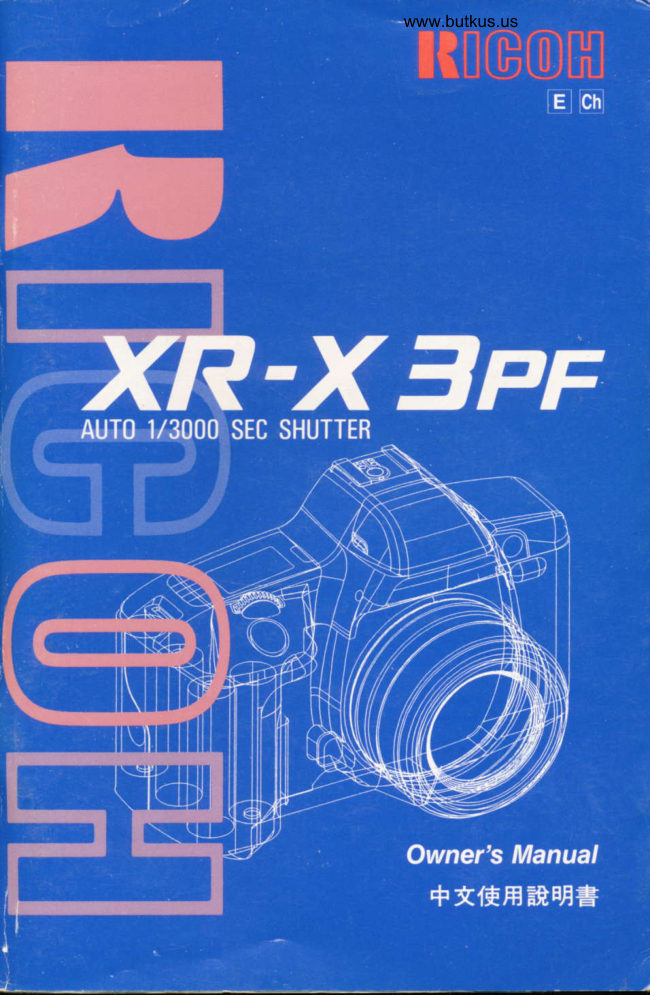
Ricoh XR-3pf User manual
User manual for Ricoh XR-3pf. 68 pages in English. Read the original PDF, download or print a copy without registration.
68 pagesEnglish5.3 MB PDF
Loading your manual…Open PDF directly
Document details
- Brand
- Ricoh
- Model / document
- Ricoh XR-3pf
- Document type
- User manual
- Language
- English
- Pages
- 68
- File size
- 5.3 MB
- Category
- Film cameras
- Document date
- Not specified in catalog
Search available document text
Find a term, then jump to its page in the original PDF. Image-only pages may not be searchable; check the PDF for exact wording and diagrams.
Page 2 · Read text
,">Problems, suggestions - Web Master


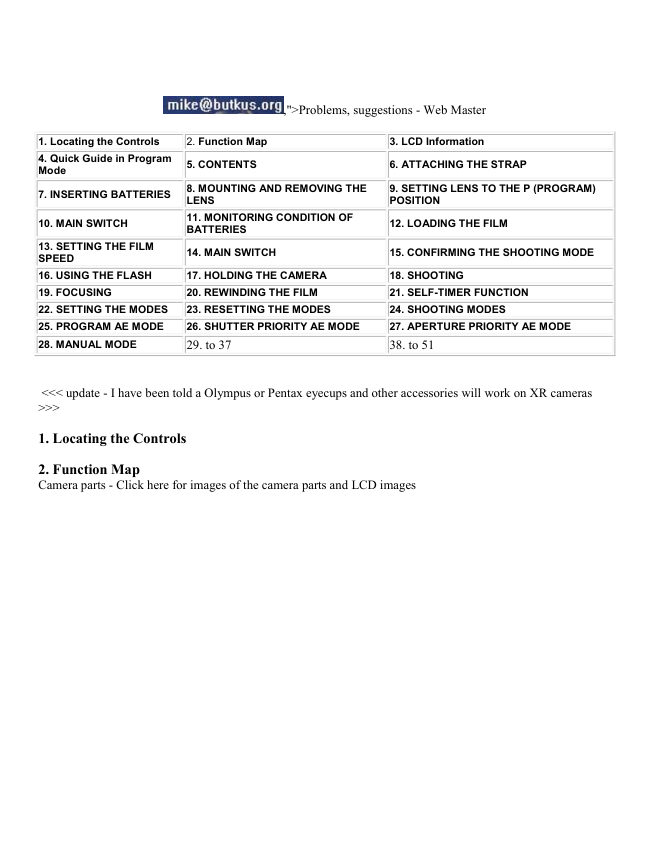
1. Locating the Controls      2. Function Map                            3. LCD Information
4. Quick Guide in Program
                                  5. CONTENTS                              6. ATTACHING THE STRAP
Mode
                                  8. MOUNTING AND REMOVING THE     9. SETTING LENS TO THE P (PROGRAM)
7. INSERTING BATTERIES
                     LENS                            POSITION
                              11. MONITORING CONDITION OF
10. MAIN SWITCH                                                      12. LOADING THE FILM
                      BATTERIES
13. SETTING THE FILM
                              14. MAIN SWITCH                       15. CONFIRMING THE SHOOTING MODE
SPEED
16. USING THE FLASH       17. HOLDING THE CAMERA             18. SHOOTING
19. FOCUSING               20. REWINDING THE FILM               21. SELF-TIMER FUNCTION
22. SETTING THE MODES    23. RESETTING THE MODES            24. SHOOTING MODES
25. PROGRAM AE MODE     26. SHUTTER PRIORITY AE MODE      27. APERTURE PRIORITY AE MODE
28. MANUAL MODE         29. to 37                              38. to 51


<<< update - I have been told a Olympus or Pentax eyecups and other accessories will work on XR cameras
>>>

1. Locating the Controls

2. Function Map
Camera parts - Click here for images of the camera parts and LCD images
View original page 2Page 3 · Read text
www.butkus.us
3. LCD Information
Reading the Exposure Indicator
The exposure indicator is displayed on the LCD Panel in the following conditions:
In Manual Mode
When the exposure compensation has been set.
When the exposure compensation will be set.
When Auto Bracketing Mode or flash compensation have been set.
When the film speed is set. 4www.butkus.orgView original page 3Page 4 · Read text
In Manual Mode and with exposure compensation, it is displayed in both the LCD Panel and in
viewfinder display.

In Manual Mode, or with exposure compensation, the exposure indicator will display the correct
exposure difference (EV).


The * (dot) mark flashes when the value is over -2EV or +2EV.

The exposure range (EV) in Auto Bracketing Mode and the flash compensation value (EV) in Flash
Compensation Mode are displayed. The exposure difference (EV) of the manually set film speed and
the automatically set film speed are displayed.


4. Quick Guide in Program Mode - Click here


5. CONTENTS


6. ATTACHING THE STRAP


                 1. Remove the Battery Holder by turning the Battery

              Holder Screw counterclockwise with a coin. (Fig. 1)

                 2. Slip the Viewfinder Cap and Shoulder Pad on to the strap. (Fig. 2)

                 3. Run the Strap Through the Strap Eyelet and set as shown. (Fig. 3)

                 4. Secure the Battery Holder to the camera body by turning the Battery Holder Screw
               clockwise with a coin. (Fig. 4)

                 5. Adjust the strap length as desired.
View original page 4Page 5 · Read text
www.butkus.us

7. INSERTING BATTERIES


                        1. Insert four new alkaline batteries into the Battery Holder, first checking that
                     the + and the - (negative) on each battery are lined up correctly according to
                     the polarity indications inside the Battery Holder. (Fig. 5)

                        2. Secure the Battery Holder to the camera body by turning the Battery Holder
                  Screw clockwise with a coin. (Fig. 6)


Battery Choices:

        * Four Penlight (AA) alkaline batteries. (nickel cadmium batteries possible.)

        * Condition of batteries should be monitored frequently. See Section 11 for details.

        * When changing the batteries, be sure to replace all four and to use the same battery brand.

       * AA Size lithium batteries can not be used. 4www.butkus.org


8. MOUNTING AND REMOVING THE LENS


                      1. Pull off the Camera Body Cap. (Fig. 7)

                      2. Align the red dot on the camera with the red dot on the lens and mount the
                    lens on the camera. (Fig. 8)

                      3. Turn the lens in the direction shown by the arrow until it clicks into place. (Fig.
                    9)
View original page 5Page 6 · Read text
4. To remove the lens, press the Lens Release Button, then turn
the lens in the direction shown by the arrow. (Fig. 10)
* Conventional K mount lenses can be used in Aperture priority
and Manual Modes but cannot be used for Programmed AE
Photography or Shutter Priority AE.
* For best results, use Ricoh original equipment lens. Proper
performance of camera may not always be assured with other
lenses. (MIKE: you must use a KR (Ricoh lens contact pin) or
KA/R (Ricoh and Pentax lens contact pins)
9. SETTING LENS TO THE P (PROGRAM) POSITION
1. While the P Lock Button is pressed, turn the Aperture Ring.
2. Set it to the locked P position for programmed automatic
exposure photography.
To unlock the Aperture ring from P. turn it while the P Lock
Button is depressed. (Fig. 11 )
10. MAIN SWITCH
1. Slide the Main Switch to ON. (Fig. 12)
* The camera is designed to shut off the main power supply
automatically to save battery energy when the camera is
not in use for about 30 secs. even if the Main Switch is left
ON. This will turn off the LCD Panel, but the information
contained in camera memory will be retained. Lightly press
the Shutter Release Button to turn on the power and
update the LCD Panel. For maximum battery life, always
turn the Main Switch to the OFF position when the camera
is stored.View original page 6Page 7 · Read text
www.butkus.us

11. MONITORING CONDITION OF BATTERIES


                       When the Power Switch is turned on, the battery condition is
                                 displayed in the LCD Panel.
                                            1. Batteries are in good condition when the (battery in full
                                         black) symbol appears on the LCD Panel. (Fig. 13)

                                            2. When the batteries are nearly exhausted, the (battery and
                                 1 dot) symbol will be displayed on the LCD Panel. (Fig. 14)
                                   Replace with 4 new alkaline batteries.


                                      3. When the (battery and 1 dot) symbol flashes, the Built-in Flash
                               cannot be used. To use the Built-in Flash, replace the batteries
                                   with 4 new (alkaline) batteries. (Fig. 15)

                                      4. When the batteries are virtually exhausted, the (empty battery)
                              symbol will appear in the LCD Panel. For a few sec. then
                                disappear all display. Replace with 4 new alkaline batteries.
                                        (Fig. 16)

                              Cold temperatures will reduce battery efficiency. In freezing
                                 weather, the symbol may turn off and only the (battery and one
                                    dot) symbol may show on the LCD Panel. If you are taking
                                    pictures in cold weather, keep the batteries warm and insert them
                                        just before shooting. 4www.butkus.org
View original page 7Page 8 · Read text
12. LOADING THE FILM


                           Always avoid direct sunlight when loading the film.

                                            1. Depress the Back Cover Lock Release Button and slide
                                        the Back Cover Latch down to open the Back Cover. (Fig.
                                      17)

                                            2. Load the Film Cassette into the Film Chamber and pull
                                        out enough film leader to extend just beyond the Film
                                   Leader Index against the Take-up Spool. (Fig. 18)

                                               * If the film leader is pulled out more than necessary when
                                          loading, the number of exposures could be reduced.

                                            3. Make sure that the film is within the Film Guides, and that
                                        the upper sprocket edge is under the Guide Plate. (Fig. 19)


                      The film may not load properly if the film leader is too loose.

                    Make sure it is flat as shown in the illustration. (Fig. 20)
View original page 8Page 9 · Read text
www.butkus.us
4. Close the Back Cover so that the Back Cover Latch
snaps shut. (Fig. 21)
If the film has been properly loaded, the film speed will first appear
on the LCD Panel for about 2 seconds. Then, the Exposure
Counter will display "1" (Fig. 22). 4www.butkus.org
If display shuts off, lightly press Shutter Release Button to
update LCD.
LCD display data can be verified by checking the
information visible through Film Loaded Window on camera
back.
5. If the film has not advanced correctly or was not taken up onto
the Film Take-up Spool, the Exposure Counter "O" will blink and
Shutter is locked until the film has been loaded correctly.
Reload the film by repeating steps 1 - 4 shown above. (Fig. 23)
If Non-DX films are loaded in the camera, no LCD
warnings will be observed and Shutter can be released.
(The film speed must also be set manually. See next
section.)
13 SETTING THE FILM SPEED
DX coded films are provided with black-and-silver patterns corresponding
to film speed and number of exposures on roll. The camera reads this
pattern and automatically sets itself for DX films with speeds ranging from
ISO 25 to 5000. (Fig. 24)View original page 9Page 10 · Read text
DX films
1. The film speed and the "DX" verification symbols are briefly displayed on the LCD Panel.
* For advanced applications, you may wish to raise or lower the ISO speed of a DX coded film.
You can override automatic ISO setting with manual setting. Refer to sec. 35 At this time, ISO
range is from 12-6400.
Non-DX films
Refer to page 39 for loading non-DX films.
14.MAIN SWITCH
1. Turn the Main Switch ON. (Fig. 25)
Digitally signed by Mike Butkus * The LCD Panel and the display inside the viewfinder are
DN: cn=Mike Butkus, o=Butkus camera manuals,
ou=butkus.org, email=mike@butkus.org, c=US displayed.Mike Butkus Date: 2023.05.17 15:48:56 -04'00'
* If there is a film loaded in the camera, the film speed will be
displayed for the first 2 seconds.
2. Check the batteries.
* See "Monitoring Condition of Batteries" on P.14.
* If the Main Switch is turned OFF, the power will be
completely cut off. The LCD Panel and the viewfinder display
will disappear.
* If the following functions are set, they will be canceled when
the Main Switch is turned OFF.
· Multiple Exposure Mode
· AE Lock
· Self timer Mode
* To prevent unnecessary battery depletion, turn the Main switch OFF when you are not
shooting.
Power consumption timer
If the camera controls ~ or functions ** are not operated for about 30 seconds, the power
consumption timer will cancel the display on the LCD Panel. At this time, if the Shutter Button is
pressed lightly halfway, the display will appear again. All Buttons, Dial, Main Switch.View original page 10Page 11 · Read text
www.butkus.us

      * * Shooting, Film loading, Film rewinding.

        * The mode settings performed before the display disappears will not be canceled.

        * When the power consumption timer has canceled the display, only the following can be
      operated: Shutter Button, Self-timer Button, Manual Rewind Button and Main Switch.

To set or change the mode settings, press the Shutter Button halfway to display the LCD Panel.

15. CONFIRMING THE SHOOTING MODE


                           The following section explains how to shoot with the simplest
                                 shooting mode. If the shooting mode is set to Program AK, the
                            camera will automatically adjust the shutter speed and aperture to
                                  the brightness of the subject you are shooting.

                                                        * Refer to "Shooting Modes" on P.26 and " Program
                                 AE Shooting" on P.27 for more information.


1. Confirm that "Auto" is displayed in the LCD Panel. (Fig. 26)

* If there are other displays besides the "Auto" display in the LCD Panel, press the RESET Button.

        If 'Auto" does not appear when the RESET Button is pressed, refer to "Changing the Reset
Settings"
     pg. 54.

2. While pressing the P Lock Pin on the lens, turn the "P" mark on the Aperture Ring to the
   Distance/Aperture Index. (Fig. 27)


                                 * Shooting in this mode is not possible with a lens that cannot be used
                             with the Program Mode.

                                 * On some lenses, the "P" mark is indicated as an "A".
View original page 11Page 12 · Read text
16. USING THE FLASH


                              Use the flash when shooting in dark places, in backlit
                                        conditions or when the subject is dark.

                                    1. Pull up the Built-in Flash. (Fig. 28)

                                      * Open the flash by pulling on the protruding grips on the sides of
                                the flash.

                                    2. Check that the Flash symbol (lightning bolt) is displayed on the
                      LCD Panel. (Fig. 29)


17. HOLDING THE CAMERA


                          To prevent camera shake, be sure to hold the camera correctly
                          when shooting.

                              Support the camera on the palm of your left hand so as you can
                                   turn the focusing ring with your fingers. (Fig. 30)

                              With your right hand lightly grasp the grip and place your index
                                     finger lightly over the Shutter Button. When pressing the Shutter
                                  Button, grasp the grip firmly. Place your elbows against your body
                          when shooting with the camera in a horizontal position, or place
                               your left elbow against your body when shooting with the camera in
                           a vertical position.
                                      (Fig. 31 )

                              Place your forehead against the camera and look through the
                                                                          viewfinder.4www.butkus.org
View original page 12Page 13 · Read text
www.butkus.us


18. SHOOTING


                                     1. Press the Shutter Button halfway. (Fig. 32)

                                       * A display will appear at the bottom, inside the viewfinder.

                                       * The Shutter Button can be pressed in two ways. If it is pressed
                                  halfway, the LCD Panel display and the viewfinder display will
                                appear. If it is fully pressed, the shutter will be released.

                                       * If the camera is not operated for about 10 seconds, the display
                                   insides the viewfinder will disappear. By pressing the shutter
                                 release button half way the display will appear.

                                     2. Confirm that the viewfinder display has appeared. (Fig. 33)

                                       * The viewfinder display should be as shown in the illustration. The
                                 "P" mark indicates that it is set to Program AE Mode. The number
                            on the left of the "P" mark is the shutter speed. The number on the
                                        right side is the aperture setting.

                                       * If the camera is not operated for approximately 30 seconds, he
                                  display on the LCD panel will disappear. By pressing the Shutter
                                Button halfway, the display will reappear.

                                       * When a slow shutter speed has been set, use a tripod to prevent
                            camera shake.
19. FOCUSING


                           Focusing is achieved with the Split image focusing, the Microprism
                             focusing or the Matte screen focusing in the viewfinder. The type of
                             focusing depends on the subject and the lens being used. (Fig. 34, 35)
                                        1. While looking through the viewfinder, focus by turning the
                                 Focusing Ring. (Fig. 36)
                                        2. Press the Shutter Button. (Fig. 37)
View original page 13Page 14 · Read text
* The film is wound on when the shutter is released.

                            Types of Focusing

                                     1. Split image

                           The area inside of the center circle is the split image. When both
                            images in the split image spot form a single, clear image, the
                                  subject is in focus.

                                     2. Microprism

                           The area inside the outer circle is the microprism. When the
                                  subject loses its shimmering appearance, the subject is in focus.

                                     3. Matte screen 4www.butkus.org

                           The area outside the microprism is the matte screen. When the
                            image loses its blurred appearance, the subject is in focus.

                                       * When you use a small aperture (high aperture value) with a lens
                             such as a zoom lens, half of the split image becomes dark. In this
                                case, use the matte screen to focus.


20. REWINDING THE FILM


                                     1. When the film has reached the end, it will automatically rewind
                                  while the Exposure Counter counts down. (Fig. 38)
                                  * When the film is completely rewound "E" is displayed in the Exposure
                          Counter. (Fig. 39)
                                     2. While pressing the Back Cover Lock Release Button, slide the
                           Back Cover Latch down and open the back cover.
                                    3. Remove the film.
                                       * When you are in a quiet location and the noise produced during
                                       film rewinding is disturbing, turn the Main Switch OFF and it will be
                                  temporarily stopped. When the Main Switch is turned ON again,
                                 the film will finish rewinding.

                                       * If the Manual Rewind Button is pressed while the film is
                                  rewinding, the film leader will not be rewound into the film cassette.
View original page 14Page 15 · Read text
www.butkus.us


                           Rewinding halfway through the film

                                     1. Turn the Main Switch ON.

                                     2. Press the Manual Rewind Button. (Fig. 40)

                                       * When removing the film, be careful not to touch the shutter with
                               your fingers or with the edge of the film.

                                       * The shutter cannot be released when "E" is displayed in the LCD
                                Panel.

                                       * It is sometimes possible to take more exposures than the number
                                  indicated on the box of the film. These "extra" exposures may
                         come out overlapped or be cut off.


21. SELF-TIMER FUNCTION


                                1. After focusing, slip the viewfinder cap attached to the strap, over the
                             viewfinder eyepiece. (Fig. 41)

                                  * The viewfinder cap is used to avoid incorrect exposure due to stray
                                    light entering the viewfinder eyepiece.

                          Press the Self-timer Button. (Fig. 42)

                    When the Self-timer has been activated, the Self-timer indicator will
                                  start flashing and approximately 10 seconds later, the shutter will be
                             released. The indicator remains lit for the last 2 seconds before the
                              shutter is released.

                       To cancel the Self-timer function after pressing the Self-timer Button,
                           press this button again or turn the Main Switch OFF.

                                  * The Exposure Counter on the LCD Panel displays the number of
                         seconds remaining before the shutter is released. (Fig. 43)

                                  * The "Bulb" function cannot be used with the Self-timer function.

                                  * For combining the Continuous Shooting Mode, Multi Exposure Mode,
                        and Auto Bracketing Mode, refer to "Combining the Functions" on P.45.
View original page 15Page 16 · Read text
22. SETTING THE MODES
With this camera, the shooting mode, shutter speed, exposure
metering, as well as many other functions can be
set using the 2 Mode Buttons and the Dial.
* You can combine the modes and set them. Refer to P.45
(Combining the Functions).
The settings are displayed in the LCD Panel. (From this point
onwards, the LCD Panel display will be referred to as the "Normal
Display".) (Fig. 44)
* When there is no display on the LCD Panel and the Main Switch
is ON, press the Shutter Button halfway and the display will
appear.
The modes cannot be set when this display is not showing.
1. Press the Mode Button (Mode 1 or Mode 2) of the mode you
wish to set. Press until the mode to be set is displayed. (Fig. 45)
For detailed information on setting a mode, refer to the
explanation of each mode.
When you remove your finger from the Mode Button, the LCD
Panel display will return to the "Normal Display" after
approximately 5 seconds.
2. Turn the Dial and set or adjust the value of the mode you have
selected. (Fig. 46)
3. Press the Shutter Button halfway to return the LCD Panel
display to the "Normal Display".
* Even if the Shutter Button is not pressed halfway, the "Normal
Display" will automatically be displayed after 5 seconds.View original page 16Page 17 · Read text
www.butkus.us


     Mode Setting Displays

     Each time you press a Mode Button, the modes will always appear in the same order.
      However, when you press a Mode Button, the first mode displayed will be the last mode that
     was displayed.

           If the power is switched off, the next time it is switched on, the mode that was last displayed
         will be the first to appear.

      Select the mode and set with the Dial.

     Mode 1 Button

      This button is used to set the shutter speed and the Creative Modes.

       Shutter Speed Mode

            | A.OFF ~ Auto |

     A.OFF (Auto OFF): Shutter Priority AE Mode/Manual Mode

      Auto: Program AE Mode/Aperture Priority AE Mode

      Exposure Metering Mode

           I ~ ~ ~ 1

      Center-weighted average exposure metering/Spot meterIng

      Continuous Shooting Mode |OFF=ON |

      Red-eye Reduction Mode | OFF ~ ON |


               * When Manual Mode is set, the exposure compensation display will not appear.
23. RESETTING THE MODES
                          By pressing the Reset Button, all the modes that were set will be
                               canceled.

                                    1. Press the Reset Button (Fig. 47)
                                      * When there is no display in the LCD Panel, press the Shutter
                               Button halfway and it will appear. The modes cannot be reset if this
                                  display is not showing.

                                      * When the Reset Button is pressed, settings will return to their
                                     original settings as follows:
View original page 17Page 18 · Read text
Shutter Speed:                          Auto
        Exposure Metering Modes:      Center Weighted Average Metering
              Preview Mode:                  On (pv)
           Manual Film Speed:               No change
               Other Modes:                   OFF
          Compensation Modes:       Compensation values are cancelled

* The modes may not be reset to their initial settings even if the Reset Button is pressed.

* This occurs when a Mode Button and Reset Button are pressed together.

* In this case, even if the Reset Button is pressed, the modes that were set will not be canceled. Also,
if a mode is set to OFF with the Mode Button and Dial, it will be reset to ON when the Reset Button is
pressed.

* To cancel a mode, keep the Reset Button pressed and use the Mode Button and Dial to set the
mode to OFF. * When pressing a Mode Button, be careful not to press the Reset Button at the same
time. For more information refer to P.54.

24. SHOOTING MODES

The 4 shooting modes are the Program AE Mode, Shutter Priority AE Mode, Aperture priority AE
Mode and Manual Mode.

Program AE Mode

The camera automatically selects the shutter speed and aperture according to the subject
illumination. This mode is ideal for general photography of people and scenery. You can also change
the shutter speed and the aperture setting combination in this mode (See "Program Shift" on P.27).

Shutter Priority AE Mode

You can select the shutter speed setting and the correct aperture will automatically be set.

You may wish to set a high shutter speed when, for example, shooting a still picture of a moving
subject. A slow shutter speed will emphasize the movement of a moving subject.

You may also wish to set a high shutter speed to avoid handshake when using a telephoto lens.

Aperture Priority AE Mode

You can select the aperture setting and the camera will automatically set the correct shutter speed.

The aperture priority function is ideal for increasing the depth-of-field. For example, in a portrait
photograph, you can use a wide aperture to create an out of focused background and emphasize the
subject, or in a landscape photo you can focus a wide area by setting a small aperture.
View original page 18Page 19 · Read text
www.butkus.us


Manual Mode

You can freely select the shutter speed and aperture setting.

They can be set according to the subject and shooting conditions.


25. PROGRAM AE MODE


                        [MODE 1]

                           The Program AE Mode is set when the display is as shown in the
                                          illustration, and the lens aperture is set to "P" (or "A"). By pressing
                                 the Shutter Button halfway, the "P" mark will be displayed inside
                                 the viewfinder. (Fig. 48)

                                     1. Press the green Reset Button to set the shutter speed to AUTO.

                   OR


                              Press the MODE 1 Button until the AUTO or A.OFF display
                                appears. (Fig. 49).

                                                          If the display shows A.OFF, use the Dial to change it to AUTO by
                                   turning right. (Fig. 50) Press the Shutter Button halfway and the
                              "Normal Display" will appear.2. Set the lens aperture to "P".

                                        * This mode cannot be used with lenses unadjustable to Program
                       AE Photography (K Mount Lenses).
View original page 19Page 20 · Read text
Program Graph
When the Program AE mode has been set, the camera
automatically sets the correct combination of shutter speed and
aperture, as shown in the graph.
* This graph will vary depending on the lens.
Lens: F1.4 - F22
Film Speed: ISO 100 (Fig. 51)
Program Shift
Even if the camera is set to Program AK, you can freely change the shutter speed and aperture
settings. The program shift allows you to change the combination of the shutter speed and aperture
without changing the exposure.
This function allows you to use functions similar to the Shutter priority AE and Aperture priority AE
without having to change from Program AE Mode.
Example of combinations that have the same exposure as when the aperture is set to F5.6 and
shutter speed is set to 1/125 seconds.
Aperture (F) 1.4 2 2.8 4 5.6 8 11 16 22
Shutter Speed 1/2000 1/1000 1/500 1/250 1/125 1/60 1/30 1/15 1/8
1. When the Program AE mode has been set, look through the
viewfinder and turn the Dial to set the shutter speed and aperture.
When performing Program Shift, the "P" mark inside the
viewfinder will flash. (Fig. 52)
If the viewfinder display has disappeared, press the Shutter
Button halfway to display it.
Depending on the lens used, the shutter speed and aperture
settings may be limited.
To cancel Program Shift, follow the procedure below. · Press the
Reset Button
Turn the Dial until the "P" mark inside the viewfinder stops
flashing.View original page 20Page 21 · Read text
www.butkus.us


26. SHUTTER PRIORITY AE MODE


                        [MODE1 ]

                           The camera is set to Shutter Speed Priority Mode when the
                                   display is as shown in the illustration (shutter speed is displayed)
                            and the lens aperture is set to "P" (or "A"). (Fig. 53, 54)

                                                * If there is no display in the LCD Panel, press the Shutter
                                      Button halfway and it will appear. The mode cannot set if
                                               this display is not showing.
                        When "Auto" is displayed in the "Normal Display" in the LCD
                                 Panel, follow the procedure below. If "Auto" is not displayed, follow
                                  the procedure from step 4.


                                     1. Press the MODE 1 Button until "Auto" appears. (Fig. 55)

                                     2. Turn the Dial to the left to display "A.OFF". (Fig. 56)

                                     3. Press the Shutter Button halfway to display the "Normal
                                    Display".
View original page 21Related documents and language editions
From the M. Butkus archive. Original publisher and archive notices are retained.
Check the model and edition against your equipment.
PDF verified 2026-10-10.