Film cameras
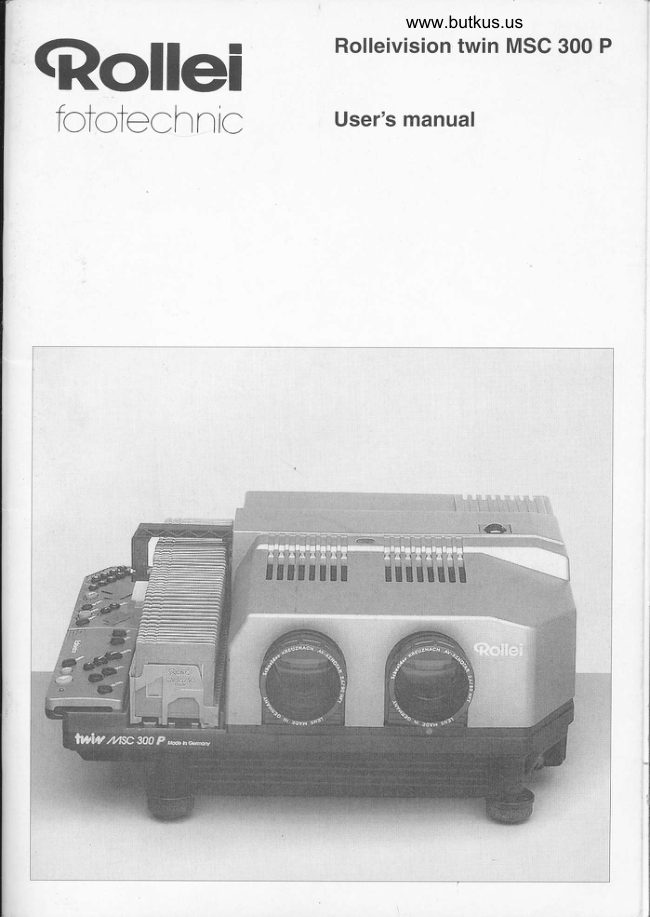
Rolleivision Twin MSC 300 P User manual
User manual for Rolleivision Twin MSC 300 P. 48 pages in English. Read the original PDF, download or print a copy without registration.
48 pagesEnglish16.8 MB PDF
Loading your manual…Open PDF directly
Document details
- Brand
- Rollei
- Model / document
- Rolleivision Twin MSC 300 P
- Document type
- User manual
- Language
- English
- Pages
- 48
- File size
- 16.8 MB
- Category
- Film cameras
- Document date
- Not specified in catalog
Search available document text
Find a term, then jump to its page in the original PDF. Image-only pages may not be searchable; check the PDF for exact wording and diagrams.
Page 1 · Read text
www.butkus.us
                                Rolleivision twin MSC 300 P(Rollei
                              User's manual ftttctechnic
View original page 1Page 4 · Read text
Components
and controls


Components and controls of the
Rolleivision twin MSC 300 P
 1  Slide magazine                   n    Emergency release lever to
 2  Feed heel on slide changer;                         disengage magazine drive
     adjustable for different magazine types       30    Front right support foot, adjustable
 3  Slide changer arm                   31    Dial for adjusting lateral
 4  Retaining screw of cover                             image superimposition
 5  lR-receiver sensor                  32   Screw for adjusting horizontal
 6 Cover                                          image suPerimPosition
 7  Left support foot with height adjustment     33   Lamp unit, replaceable
 8  lnterchangeable lenses            U    Mode display
 9  Magazine track                    35   Mode selection button
10 Compartment for remote control unit         36   Red "Module" button with LED function
11  lnfrared remote control                37     "+/-" buttons for timer with LED function
12 "End" button                      38    "Autofocus off" button with LED function
13  "Timer" button                     39   Red "Enter" button with LED function
14  "Dissolve" duration buttons             n     Numeric keypad for programming
15 Manual focusing and magazine                     on the projector
     transport buttons                   41    Display for screen time/dissolve duration,
16 "Stop/go" button                                       slide/program No., special function and
17 Transmitter diodes                                        projector parameter
18 Red LED to show signal input, '            42    lnterval lighting
     also battery check                    431) Battery connector
19 Green button for forward slide change       4     Module
n   Red button for reverse slide change        45    Projection lamps, 24V|15OW
21 "Memo" button                    46   Fuse (MT 2 A1250 V), already  fitted,
2.  Rear left support foot                                           for magazine transport system and
23 Socket for mains supply lead                              electronics
24 Mains switch                              47148 Fuse (MT 8 4/250 V), already  fitted,
25 PC control socket                                              for lamPs
%  Socket for magnetic tape control/remote    49   Lamp unit release
     control lead
27 Rear right support foot, adjustable
28 Compartment for memory module                    1) ltems 43lo 49 appear only in detail illustrations.
4     Rolleivision twin MSC 300 P
View original page 4Page 6 · Read text
lntroduction


The Rolleivision twin MSC 300 P is an opto-electronic     the manual contains practical hints and notes,
high-precision system with all of the features required     together with a troubleshooting guide to help
for fully automatic dissolve projection.                 you identify and fix operating errors and minor
   Microprocessor technology controls image           problems. Projection distances and screen sizes are
sharpness, magazine  transport, slide changing, and      conveniently listed in a table.
projection and dissolve times. The infrared remote          Whether you'll be using the projector for profes-
control unit with built-in timer and dissolve rate             sional purposes or for personal pleasures, we wish


                                                                                                                                                                                                                                                                                                                                                                                                                                                                                                                                                                                                                             Icontrol delivers the very latest in user convenience.      you every success - and a lot of fun
lntelligently designed displays keep you informed of
functions and status. The range of interchangeable
lenses provides focal lengths for most projection
distances.   The projection programming facilities are parti-  Aorcl                                               fototechnrc
cularly ingenious. They enable you to put together
creative slide presentations  with striking dissolves,
which can be run fully automatically. The Rolleivision
twin MSC 300 P takes standard European, LKM and
CS slide magazines, as well as Rollei's own inter-
connectable CM 55/50 magazine. You don't need any
special magazines which involve rearranging regular
slide magazines.
    "Black-outs" and abrupt image changes are a
thrng of the past too. The dissolve system opens up a
whole new world ol opportunities for designing truly
creative slide shows.
  We have produced this detailed instruction
manual to help you to get the most out of this
unique pro.iection system. An introduction to the
components.and controls is followed with all of the
information you need to get started. The next
section contains a detailed description of the opera-
tion and features of the projector. The last section of


       Rolleivision twin MSC 300 P
View original page 6Page 7 · Read text
Venmo @mike-butkus-camera  Ph. 2083
PayPal Name  Lynn@butkus.org      www.PayPal.me/lynnbutkus
View original page 7
Page 8 · Read text
www.butkus.us
Getting
started


This section is intended for the user in a hurryl           Connecting  the mains lead
It gives you everything you need to know to start       The projector is designed for a mains voltage
using the projector immediately                             ol 22O-240V and has an automatic frequency
                                                          converter.

                                                                     lnsert the mains lead socket 23. Connect the other
                                              end to the mains supply. Press the "-" side of mains
                                                       switch 24.

                                                   Caution: Never obstruct the ventilation  slits or air
                                                                outlets. Never operate the proiector without its coverl


                                                                                          Rolleivision twin MSC 300 P
View original page 8Page 10 · Read text
www.butkus.us


Focusing                                            Adjusting superimposition on the screen
Focus the first slide from the projection first lens B.       The screen must be at least 1.5 metres away from
Press the green button 19 and focus the second         the projector. Press the green button 19, watch the
slide from the other lens. All subsequent slides  will       dissolve and check the lateral superimposition of
now be focused automatically,  but the "Focus"            the images. The best time to make this adiustment
buttons 15 can  still be used for manual override.              is during the slow dissolve or after freezing the
   For manual focusing press the "Autofocus off"         dissolve by pressing the "Stop/go" button 16 When
button 38; the red LED then comes on. Focus each      making this adjustment,  it is preferable to use slides
slide using the focusing buttons 15.                            in matching mounts.
                                                          Turn the adjusting dial 31 to make any lateral
Adjusting the image on the screen                    adjustment needed. Horizontal superimposition is
Adjust the image on the screen. Turn the support         factory-set but can be adjusted  if necessary
feet to adjust the height of the screen image and          (see page 16).
the horizontal position.  lf the image does not
properly  fit the sides of the screen, make sure that
the projeclor and the screen are parallel.


                                                                                          Rolleivision twin MSC 300 P
View original page 10Page 12 · Read text
www.butkus.us
Note the monitoring signals
The red LED 1B on the remote control unit lights up
each time a command is input. The timer LED 37
signals the status of the timercontrolled automatic
slide change:
Blinking LED = Screen time entered,
                   or timer sequence or dissolve
                    interrupted;

Steady LED =  Timer running

The LED next to the "Autofocus off" button 38 lights
up to show that the autofocus system has been
switched off.
   The LED next to the "Module" button 36 signals
operations in "Auto" and "Record" modes (-+pages
21122 of this manual).
   The LED next to the "Enter" key 39 lights during
programming inputs.
   The LED display 34 indicates the operating
modes.  lt displays "Manual"  for standard operation
(as described here). Use the "Mode" button 35
to select alternative modes (-+ page 19 of this
manual).
   During standard operation, display 41 indicate
slide No., dissolve duration and screen time
(seconds countdown).


                       Rolleivision twin MSC 300 P   11
View original page 12Page 13 · Read text
www.butkus.us

 Removing the magazine
 At the end of the magazine run: Remove  it in the
  direction in which  it has run
     Before the end of the magazine run: Press the
 "End" button 12. The projector completes the last
 command input and the slide changer puts the
  slides back into their magazine compartments. The
 magazine automatically runs back to the starting
  point where  it can be removed.


 12  Rolleivision twin MSC 300 P
View original page 13Page 15 · Read text
Filling the magazine                        LKM magazine
Standard Rollei CM 55/50 magazine               LKM magazines can be used for all slide mounts up
Preferably use slides in smooth plastic mounts with        to a thickness of 2 mm. To ensure optimum relia-
rounded corners, not thicker than 3.2 mm. These are        bility, we recommend the use of slide mounts with a
perfectly safe for automatic operation. Cardboard-       thickness of 1.5 - 2 mm  if you're using.1 an LKM
mounted slides can also be used. We recommend       magazine. Silde mounts thinner than  .5 mm should
the use of E€   slide mounts. This manufacturer        only be used in the standard magazine. Even with
offers a comprehensive range of types and sizes.          this magazine, you will need to keep to the same
Do not use bowed cardboard-mounted transparen-       kind of slide mount if you want to achieve optimum
cies, metal frames or all-glass mounted slides with       superimposition. Magazines designed to take 60 or
sharp edges or corners; these are liable to cause       B0 slides are available (but not in the Rollei range).
problems. The best way to ensure optimum super-
imposition during dissolves is to use slides with the     CS magazine
same types of mount.                                      This magazine takes specially designed CS slide
Only use slide magazines made from an              mounts with a shaped edge that engages into guide
opaque material.The use of other types ot               strips in the slide compartments. The magazine
material could result in operating faults,              cannot be used with any other slide mounts. CS
Rollei CM 55/50 magazines are ideally suited to the      magazines  for 40 or 100 slides are available (but not
Rolleivision twin MSC 300 P These 50-slide maga-       from Rollei),
zines are easily coupled together before or during
projection, and permit uninterrupted projection of a
number of magazines in sequence,  lf you intend to        Fitting the lenses
project several magazines, we recommend the use     Screw both lenses into their mounts. Be careful not
of the magazine track extension (supplied as an           to leave any fingerprints on the lens surfaces.
accessory), which is easily attached to the projector,
    Rollei CM 55/50 magazines can also be used
with most other commerclally available projectors.
   The above illustration shows you how to  fill the
magazine.  Position the magazine with the number
strip on the right. lnsert the slides in the desired
order, beginning with magazine compartment
No,  .1 . Make sure that the slides are upside down
with the emulsion side facing the screen.


14  Rolleivision twin MSC 300 P
View original page 15Page 16 · Read text
www.butkus.us


 lnserting the magazine                                   Direct slide selection
 When you are using a siandard magazine or a Rollei     Another way of advancing directly to a specific slide
 CIV 55/50 magazine, you must always put the orange       is to enter the slide compartment No. on the nu-
 feed heel 2 in the horizontal position. To do this,          meric keypad 40.
 switch on the projector, press the "Stopigo" button 16        After input, which is indicated in display 41,
 and then the green forward{ransport  button. This         press the forward{ransport  button 1g. projection
 extends the slide changer 3. Press in the tiny knurled      starts with the selected slide.
 screw on the slide changer, turn  it 90. and let  it spring      You can project any sequence of slides by
 back. Press the green forward{ransport  button i9.       entering the slide (compartment) numbers via the
 The slide changer returns to its original position.         numeric keypad during projection. On the next for-
        lf you are using LKM or CS magazines, turn       ward slide change command, the seiected slide dis,
 the horizontal  slide changer heel 2 to the              solves into and replaces the slide already ready for
 vertical position.                                          screening.
    Push the loaded magazine into the track (in the       Setting up the projector and screen
 direction  of the screen) as far as  it will go. The            Set up the projector on a firm, level surface, prefer-
 number  strip must be on the outside, except with         ably on a solid projection table. Make sure that the
 CS magazines when it should face inwards.                  front of the projector is parallel with the screen and
    Press the green forward-transport button 19.          the lenses are at roughly the same height as the
 The slide changer 3 now loads the first and second      centre of the screen. Allow adequate space for the
 slides into the projector. The lamp comes on auto-        cables and for magazine clearance at the front and
 matically and projeclion oegins.                         back. Do not obstruct the ventilation  slits.
 Selecting a specific slide                             Aligning the image
 lf you want to start your presentation  with any slide        Line up the projected image with the centre of the
 other than lhe firsl one in lne magazine. you can         screen. Turn the support feet to adjust the height
advance the magazine to the slide you want. press      and horizontal position  of the image.  lf you need to
the front "Focus" button l5 until the magazine is in        align the image sideways, move the projector or the
the required position. You can advance the maga-      screen until they are parallel.
zine compartment by compartment by releasing                           lf there are malor differences in level between the
and briefly pressing  this button.  lf you go past the         projector and screen, you will have to raise the pro-
slide you want, run the magazine back in the same        jector or the projection table, keeping them perfectly
way with the rear "Focus" button 15 This special           parallel, otherwise keystone  distortion of the image
function only works immediately  after the insertion            wjll occur. Make sure you do not  tilt the projector too
of the magazine until the first slide change com-        much. e.g. by raising ihe front edge of the projector
mand (given by pressing the forward{ransport  but-      beyond the adjustment range of the support feet.
ton 19 or from a magnetic tape control pulse).

                                                                                          Rolleivision twin MSC 300 P   i5
View original page 16Page 17 · Read text
www.butkus.us


Focusing                                        lmage superimposition
Turn the lens B projecting the first slide and get the       Press the green forward-transport button 19. Watch
image on the screen in focus. Press the green            the dissolve and check that one image is completely
button 19 and focus the second image from the         on top of the other without any lateral displacement.
second lens. This manual adjustment is only made         ldeally you should make this adjustment during a
at the beginning of a show. After that the AF system      long dissolve. Where possible, use matching slide
automatically  focuses each lens for each slide.          mounts for this test. Adjust the superimposition by
   Repeat the initial manual adjustment after             turning the adjusting dial 31, The projector must be
changing the lenses or the projection distance, or          at least 1.5 metres from the screen.
when you alter the focal length of Vario zoom lenses        The projector is factory set for correct horizontal
       If the magazine is loaded with glassless slide         superimposition. However,  il image levels do not
mounts, the heat may cause the transparencies to        quite match although you are using the same slide
bow.  lf this happens the AF system automatically         mounts, take a suitable screwdriver and turn the
refocuses the image.                                      adjusting screw 32 until the images are level with
   The two "Focus" buttons, that are used for          each other.
manual operation, remain active even with the AF
system switched on. Pressing one of these buttons
overrides the autofocus action. Exceptions are
during sandwich projection as well as fade-in and
freeze phases, where manual focusing is switched
off automatically, The LED next to the button 38
blinks to indicate that the AF system is switched off
for the slide currently being projected. AF is reac-
tivated when button 38 is pressed again or the next
slide change command is given. The LED will then
go out.
   To disengage the AF system completely, press
the "Autofocus  off" button 38. The LED will then
come on.


       Rolleivision twin MSC 300 P
View original page 17Page 18 · Read text
www.butkus.us


Remote control
 lf you want to control your show directly from the
projector, leave the lR control unit 1l inserted in the
projector,   lf you prefer to use the remote control
facility,  lift the unit from lts compartment. Open the
hinged cover, take out the battery connector 43
and attach  it to a 9 V battery -). Insert the battery in
the compartment and close the cover. Point the
transmitting diodes at the receiver sensor on the
projector. To use the remote control, there needs to
be at least 1 metre between the transmitter and the
receiver. After the show replace the remote control
unit (with the transmitting diodes facing the rear) in
the compartment 10. lvake sure you push it right in.

Caution: Do not expose the lR receiver sensor 5 to
intense extraneous  light (such as direct light from a
lamp or bright sunlight) as this could prevent the
unit from working properly.

Remove the lR control unit from its compartment  if
you connect a cable remote control to socket 26.


') Not supplred with projector.


                                                                                          Rolleivision twin MSC 300 P   17
View original page 18Page 19 · Read text
Setting the dissolve duration                         Timer-controlled slide changes
The default dissolve time on the projector is              Activate the automatic screen time by briefly
2 seconds, i.e. the projector is set to that time when      pressing the Timer" button 13. Start the cycle by pres-
you switch it on. lf you want to alter the dissolve           sing the green forward-transport button 19.
duration, press one of the three "Dissolve" butlons      Change the screen time as follows:
14. Alternative  dissolve durations are 0.1, 3 and        When you press the "Timer" button 13, the default
6 seconds. The display 41 indicates the duration          screen time is 8 seconds. Press the "+" button to
entered. See page 30 on how to record other           change the screen time to 12 seconds, and press
dissolve durations on the buttons. By pressing the        the "-" button to set  it to 4 seconds.  lf you press
"Stop/go" button 16, you can extend (freeze) the         the "+" button and the "-" button at the same time,
dissolve and restart  it by pressing the button a            the timer is reset to 8 seconds. Press the "Timer"
second time. The standard dissolve time can now        button 13 to switch off the timer. When you enter a
no longer be activated.                                  screen time by one of the "+/-" buttons 37, the read
                                                          timer LED blinks;  it becomes steady once you initi-
Slide changes                                              ate the cycle by pressing the green forward-
                                                           transport button, The display 41 indicates the
For a forward slide change, briefly press the            screen time entered as well as the No. of the
green button >  once to show the next slide in the        projected slide.
magazine.                                                 At any time, you can interrupt automatic timing
                                              and advance the next slide manually by pressing
For a reverse slide change briefly press the red          the forward{ransport  button 19. The screen time of
button {  each time to show a slide which you have     the new slide is again controlled by the timer. Press
already projected. Single slides can only be projected    the red reverse{ransport button 20 to clear the
when the magazine is inserted.  lf you re-sort or           timer and load the previous slide back into the
temporarily remove slides from the magazine during       projector. To go back to automatic timing after such
a show, keep the two empty compartments free -       a reverse slide change, enter the timer setting again.
that is where the projector must return the slides         The timer function only works with forward slide
actually being projected     !                                      projection.


18   Rolleivision twin MSC 300 P
View original page 19Page 20 · Read text
www.butkus.us


Selecting the memo lunction                   "Auto" = Automatic operation, controlled by the
With the "Memo" button 21 you can electronically                  program stored in the module
flag up to any 16 slides in a magazine for repetition       "Record" = Recording mode. The program in the
after the run. To do this, briefly press the "Memo"                    working memory can be saved to the
button each tjme a slide to be flagged appears on                    module.
the screen. Once the magazine has completed  its
run, the projector automatically shows the first           During standard operation, the LED display 41
selected slide. Press the green button 19 each time       indicates the slide No., dissolve duration and screen
to recall each of the flagged slides in turn.                  time. The timer cycle can be monitored  via the
   You cannot recall the slides automatically using      countdown in seconds. ln enter modes  .l and 2
the timer. While the flagged slides are being           (programmed operation), the display also indicates
projected, the LED panel 34 displays "Test".             the program No. as well as the special function (SF)
                                               and projector parameter (PP) codes (--;see page
Monitoring signals                                 30 of this manual).
The red LED 1B on the remote control unit lights up         The "Autofocus off" LED 38 lights up or blinks
for each input command. The timer LED 37 signals      when the AF system is switched off.
the state of the timer-controlled automatic slide                  ln "Auto" mode and "Record" mode, the
change:                                             "Module" LED 36 indicates the execution of a com-
                                         mand entered by pressing the "Module" button.
Blinking LFD = Screen time entered, or time             The "Enter" LED 39 indicates that the projector.1              sequence or dissolve interrupted,          is ready for programming in enter modes  and 2
                   or the first slides are inserted and         via the numeric keypad (-+ see pages 22 and 30 of
                 about to be faded in (ready                this manual).
                     for screening/standby position)
Steady LED =  Timer in operation

The display 34 indicates the operating modes.
"Manual"= Standard operation
"Test"=      lnput commands executed
                 automatically via the working
              memory


                                                                                          Rolleivision twin MSC 300 P
View original page 20Page 21 · Read text
www.butkus.us

 Changing the magazine                             Using Rollei CM 55/50 magazines
 When the magazine has completed  its forward or        To ensure that the coupling and uncoupling of Rollei
  reverse run, pull  it out from the front or rear of the      CM 55/50 magazines during projection is success-
  projector as the case may be. lnsert the new maga-          ful, observe the following points:
  zine and continue the show by pressing the green          Push the fist magazine forward as far as  it will
  forward{ransport  button.                           go and start forward transport. Link up the second
     To change a magazine before the end of its run,      magazine not later than the projection of slide
  press the "End" button 12.Ihe projector executes       No. 45 of the first magazine. You can uncouple the
  the last input command and the slide changer                first magazine after slide No. 6 of the second
  returns the slides actually in the projector to their       magazine and not later than slide No. 12. To un-
  magazine compartments. The magazine automati-       couple the first magazine, slightly raise  it and then
  cally runs back to its starting position and can then              lift it out. lf the magazine track extension is fitted,
  be removed. This procedure also clears all function      you can uncouple the first magazine at a later stage
 commands.                                             Magazine track extensions   fit into the specially
                                                 machined holes in the magazine track 9 by means
  Caution: When using different types of magazine           of integral studs.
  (standard, LKM, CS) check that the feed heel is in
  the correct position.                                  Caution: Even with the magazine track extensions
                                                                          ln place, never have more than two magazines on
                                                              the track at any time.
                                                     The Rollei CM 55/50 can also be used on its
                                               own as a standard magazine on all projectors
                                                    designed to take this type of magazine.


         Rolleivision twin MSC 300 P
View original page 21Page 22 · Read text
www.butkus.us
  '1 . Programming basics


1.1 Storing a manually created slide show
Unnoticed by the user, the projector stores the data
for each slide in its working memory during a
manual slide show.  lt stores the slide (compartment)
No,, dissolve duration and slide screen time infor-
mation that are entered under the same program
step No.  lf you modify a dissolve duration by
pressing one of the three "Dissolve" buttons, the
new duration applies to the next dissolve. Recorded
screen times (timer) always correspond to the
period during which a slide remains on the screen,       however, accept continuous reverse slide change
i.e. after the fade-in sequence and before the         commands in the test mode. Continue projection
fade-out sequence,                                            via the green forward{ransport  button or the
     During timer operation,  it is possible to stop and     "Stop/go" button.
resume the slide show via the "Stop/go" button.
The prolector will then store the resulting (longer)         1.3 Modules
slide screen time. A dissolve sequence can likewise    A slide show that has been stored in the projector's
be stopped via the "Stop/go" button. However, this       working memory can be saved to a removable
information  is not retained by the projector.             memory chip or module 44 which is inserted into
      All stored data will be lost  il the projector is     compartment 28 beneath the control panel. There
switched  off.                                             are two types of module: type 100 takes about 100
                                                             slides and type 300 takes about 300 slides. Module
1 .2 Test mode                                          capacity can, however, vary depending on the
You can let a manually created slide show run           amount of information stored for each slide. You
through again automatically for test purposes. After      can read from or overwrite  all modules as often as
completing your show, press the "Mode" button to      you like. During a reading operation, the entire
switch to test mode. Start projection by pressing        module content is loaded into the projector's
the green forward{ransport  button. You can stop         working memory; when writing to the module, the
and resume a dissolve or a screen time with the            entire content (if possible) of the projector's memory
"Stop/go" button. The show can be terminated any          is saved to the type 100 or type 300 module.
time using the "End" button. The "Memo" button is
activated in the same way as in manual mode.             1.3.1 Saving to the module
                                           When  it saves a show to the module, the projector
Modifications in test mode                               transfers all the stored data from its working
You may need to correct the dissolve duration or        memory to the module. To perform this operation,
the screen time for a particular slide. This can be         select the "Record" mode using the "Mode" button.
done by pressing the "Stop/go" button during pro-        This causes the LED next to the "Module" button to
jection in test mode. Then press the timer correction       blink. Press the "Module" button. The word
button or one of the three dissolve buttons to alter        "Record" now blinks to warn you that any data
the previously stored screen time for the slide being      already in the module will be deleted completely  if
projected or the dissolve phase from the current        you press the "Module" button again. After pressing
slide to the next slide.  lf, however, you wish to            the "Module" button a second time, the stored data
modify the dissolve duration for the slide you are         are transferred to the module. During  this phase,
viewing, you must press the red reverse{ransport        the LED stays on continuously and only goes out
button prior to modification. The projector will not,       when the data are saved. The projector now auto-
                                                                                          Rolleivision twin MSC 300 P  21
View original page 22Page 23 · Read text
matically switches back to "Test" mode. The slide          3. By entering the slide compartment No. via the
show data are still available in the working memory          numeric keypad and then pressing the green
of the prolector.                                             forward{ransport  button.
        lf there is no module in the compartment, the
LED continues  to blink. The "Module" LED also         The projector searches  for the program step No.
continues  to blink  if module capacity  is insufficient.        against which the selected slide No. has been en-
However, as much as possible of the show will            tered. The seiected slide, and the slide entered for
be saved. Exit "Record" mode via the "Mode"            the next step of the program, are fed into the
button.                                                            prolector.
   Caution: Do not switch off the projector while          Random access is possible any time during a
recording a show.                                            slide show via the numeric keypad and subsequent
                                                       pressing of the green forwardlransport  button. This
1,3.2 Playing back a recorded show                causes the slide in standby position to be replaced
      from the module                                     by, and then dissolved into, the selected slide.
Before projecting a slide show which is stored in a          Note: Random access in the "Auto" and "Test"
module, you must load the data from the module       modes is only possible  if the selected slide exists in
into the working memory  of the projector. Select           the working memory.
"Auto" mode using the "Mode" button. The LED         Continuous shows of more than 100 slides must
next to the "Module" button blinks. Press this            always be projected in Rollei CM 55/50 inter-
button to load the module's content into the             connectable magazines.  lf you intend to start one of
working memory; the data in the module remain          these shows  at, say, slide (compartment) No. 175,
unchanged You can start the show immediately by       enter the digits 175 via the numeric keypad and
pressing the green forward{ransport  button. A           press the green forward-transport button. The
dissolve sequence or screen time can be halted and    magazine will not advance 175 compartments, but
resumed using the "Stop/go" button. The "Memo"          only 25 instead. The projector assumes  that the
button can be activated in the same way as for         magazine containing slides 151 to 200 has been
manual mode. You can terminate the show any time      attached. The projector acts in this way lrom slide
with the "End" button.                                 (compartment) No. 101 on.

1.3.3 Other points to note
The "Test" and "Auto" modes are similar in opera-
tion. They only differ in that the "Test" mode allows
modifications to be made and the "Auto" mode
allows data to be loaded from the module.

1.3.4 Demonstration module
The prolector is supplied with a type 100 memory
module containing a short slide show for demon-
stration purposes.  lt is the same program as that
given in section 2.1.9.3, including the special                           2. Extended
effects.                        programming features
1.4 Random access to any slides in the
    "Auto" and "Test" modes                          2.1 Programming a slide show via
Like in the "Manual" mode, random access to any          "Enter Mode 1"
of the slides rn the working memory is likewise          You have a lot more possibilities  if you are creating a
possible in "Test" and "Auto" modes.                        slide presentation  via the numeric keypad. You do
                                                             not even need to let the show run at the same time
You can start this operation in three different ways:       as described in section 1.1. Special functions can
1. By pressing the green forward{ransport  button.        also be programmed. A great help in planning a
2. By advancing to the slide compartment with the       program is a programming table, as illustrated on
   focusing buttons and then pressing the green        page 27  . With that you can then set up the program
   forward{ransport  button.                            step by step.
22   Rolleivision twin MSC 300 P
View original page 23Page 24 · Read text
www.butkus.us
                                                                                                                    it by pressing the "Enter" button. Dissolves can
                                                    be selected between 0.1 (cut) and 25 seconds.

                                                                 2.1.4 Screen time (timer)
                                                              Next, "Timer" appears in the display 4 j. The screen
                                                        time previously  entered  for that particular program
                                                        step No. appears in the digit display. lf you are
                                                            creating a new slide show, the standard screen time
                                                                     of 0 seconds appears, i.e. the timer is switched off.
                                                         Press the "Enter" button to confirm, or key in a new
                                                          screen time via the numeric keypad and store  it by
                                                        pressing the "Enter" button. Screen times can only
                                                    be entered in steps of one second.
                                                             With the timer switched off, control of the for-
                                                 ward slide change is transferred either to the green
                                                          forwardlransport  button or to external control via a
                                                        synchronizer or a PC. The screen time can be set to
                                                        anything from 4 to 600 seconds in steps of one
    To program a slide show on the projector, you        second. Make sure, however, that the screen time
 must first call up "Enter Mode 1". To do so, switch            is not shorter than the time needed to change the
 to "Test" mode using the "Mode" button, and then         slides (it should be longer still  if the slides are far
 press the "Enter" buiton. You can now create your        apart in the magazine).
 slide show with all the desired effects.
                                                       Note: Timer settings are always displayed jn whole
 2.1.1 Program step number                          seconds, i.e. a timer setting of 7.8 seconds stored
 The "Program" prompt blinks in the display 41 to         previously in a different mode will be displayed as 7
 indicate that the projector is ready to accept input       seconds. However,  if you press the "Enter" button,
 of the program step No. via the numeric keypad 40       the working memory  will store the displayed time, or
 You should start the program with step No. 1. After        7.0 seconds in our case. To prevent the previous
 input, press the "Enter" button to store that pro-           timer setting from being modified, do not press the
 gram step No in the working memory. The hiohest        "Enter" button, but the "Timer (+) correction" button
 step No. is 999, hence a show can contain up to         instead in order to exit the timer display (-+ Useful
 999 images.                                                  information about "Enter Mode 1")

 2.1.2 Slide number                                          2.1.5 Special functions
 Once you have entered the step No., the display 41     Once you have entered the screen time, the display
 prompts wjth "Position". The slide (compartment)       41 prompts with "SF" The special function pre-
 No. which js stored in the working memory  for that         viously entered for that particular program step No.
 particular program step No. appears in the diqit         appears in the digjt display. lf you are creating a
 display. Press the "Enter" button 39 to confirm, or       new slide show, "0.0.0" appears, i.e. no special
 key in a new sljde No. (j.e. compartment No. of the        functjon. Press the "Enter" button to confirm, or key
 slide magazine)  via the numeric keypad and store  it        in a new special function via the numeric keypad
by pressing the "Enter" button. The highest slide        and store  it by pressing the "Enter" button. Various
No. is 999.                                        ways of defining special effects  for each slide are
                                                      described in section 2.1,9.
2.1.3 Dissolve duration
Next, the "Dissolve" prompt appears in display 41.       2.1.6 Next program step
The dissolve duration previously entered  for that       Once all the parameters  for a slide (slide compart-
particular program step No. appears in the digit dis-     ment No., dissolve duration, screen time and
play.  lf you are creating a new slide show, the stan-       special function) have been entered, the display
dard dissolve duration of 2.5 seconds will appear       prompts again with "Position" while the prevrous
Press the "Enter" button to confirm, or key in a new      program step No. is automatically incremented by
dissolve duration  via the numeric keypad and store        1. Now you can proceed with programming the

                                                                                          Rolleivision  twin MSC 300 P   23
View original page 24Page 25 · Read text
next slide (next program step). To amend the slide        2.1.9 Description  of the special functions
 parameters  at any point in the program, simply           Special functions are anything in the way of special
 overwrite the program step No. that appears in the        effects deviating from a straight dissolve from one
display using the numeric keypad and confirm with       slide to the next. Each special function applies to
 "Enter". Refer to section 2 1.1 lor details on how to       the slide against which  it is entered We make a
proceed.                                                       distinction between special lamp functions and
                                                          speciai mechanical functions.
2.1.7 Uselul information about
      "Enter Mode 1"                                       2.1.9.1 Special lamp functions
The program can be checked by moving up or
down with the aid of the timer correction buttons or      Fading in/sandwiching
moving through the columns using the green for-       The "Fade-in"  feature  is keyed into the program
ward-transport and red reverselransport  buttons.         step for a slide. ln the "Test" or "Auto" mode, the
    Errors can be corrected any time by simply over-      slide fades in - with full lamp output - over a slide
writing them prior to pressing the "Enter" button.          already being projected through the other projection
       lf you do not notice the error until after you have       system. The screen time for the slide being faded in
confirmed with "Enter", you must press the                     is variable from 1 to 9 seconds. Fade-in/out  timd
"Timer (-) correction" button until the same display      depends on the dissolve duration entered  for the
blinks again. Then you can enter the information           slide being faded in. The timer setting specifies the
again. lvodifications and new inputs must always be     screen time for the slide in the other projection
confirmed with the "Enter" key.  lf you make an input      system after completion of the fade-in sequence.
via the numeric keypad and then just press the
"End" or "Mode" key, that input will not be stored.        Freezing
   You can exit "Enter Mode 1" any time with the        The "Freeze" feature  is keyed into the program step
"End" or "Mode" keys.                                             for a slide. ln the "Test" or "Auto" mode, the slide
                                                         dissolve is halted (frozen). Freeze duration is variable
2.1.8 Extended modification options               betweenland9seconds.
         in test mode
When in "Test" mode, "Enter Mode 1" allows you to       Blinking
break into a running slide show with the aid of the       The "Blink" feature  is keyed into the program step
numeric keypad. You can modify slide data as               for a slide. ln the "Test" or "Auto" mode, the slide is
required - the slide No., dissolve duration, screen         rhythmically superimposed - with full lamp output
time or the special functions. All modifrcations  are        over a slide already being projected through the
stored in the working memory. While the show  is          other projection system. The number of blinks is
running  in "Test" mode, lust press the "Stop/go"           variable from 1 to 9. Fade-in/out time depends on
button and then the "Enter" button to activate            the dissolve duration entered  for the blinking slide;  it
"Enter Mode 1". Now select the program step No.        should, however, be brief to create a genuine blink-
you wish to modify. To help you, the display will            ing effect. The timer setting specifies the screen
show the program step No. which is active at that         time for the slide in the other projection system after
moment. Confirm the (newly selected) program step     completion of the blinking sequence.
No. with "Enter". The slide (compartment) No.
 already entered under that program step No. will
appear and can be altered as required. Once this is
confirmed with "Enter", the dissolve duration
appears, and so on. At the end of you modifications,
press the "End" button, and continue the show
either with the "Stop/go" button or the green forward-
transport button.


       Rolleivision twin MSC 300 P
View original page 25Page 26 · Read text
www.butkus.us
       Special functions


'     Mechanical function             Lamp function                Number/duration
   0 Normal slide change              *0 Normal dissolve
   1 Autoreverse                             l Fade-jn/sandwich     1sec.....gsec
   2 Slavefunctionatthe       2Freeze                  .lsec.....9sec
         beginningof adissolve        3 Blinking            1x  ......9x
   4 Slavefunctionatabout     4 Flashing           1x  .....9x
      themiddleofadissolve      5Alternating          1x  .....9x
                                              *6 Fades out rmage  in
      Function 1 can be combined           previous program step/
        this function 2 or 4.Io do                 lades in image in this
        this, enter the sum of the two.           program step                         . Onty rhe tamp funcrions o, 6 and 7 can
                                                                                            be combrned  with the mechanical                                              *7 Fades out image in                    functions                                                previous program step/
                                               pause/continue with
                                          image in this program
                                                step by pressrng the
                                                  forwardtransport  button.

    Flashing                                       Fading out and fading in again
    Same as the "Bllnk" teature, but faster.              The first slide fades out completely before the next
                                                                     slide fades in. This function is useful instead of a
    Alternating                                             straight dissolve, for example  to facilitate the switch
     The "Alternate"  feature  is keyed into the program    from portrait to landscape format.
      step for a slide. ln the "Test" or "Auto" mode, the
      slide changes over back and forth with a slide        Fading out - standby - fading in
      already being projected through the other prolection  This special function is used, for example, when
      system. The number  of alternations is variable        there are planned breaks  in a slide presentation.
     between 1 and 9. Alternation rate can be varied by     The first slide fades out. The next slide fades in
     means of the dissolve duration. The timer setting    when the green forward-transport button is pressed
      specifies the screen time for the slide in the other       to continue the presentation.'     projection system after completion of the alternating
     sequence. Alternation always ends up with the slide
       rn the other prolection system.


                                                                                                 Bolleivision twin MSC 300 P  25
View original page 26From the M. Butkus archive. Original publisher and archive notices are retained.
Check the model and edition against your equipment.
PDF verified 2026-10-10.