Film cameras
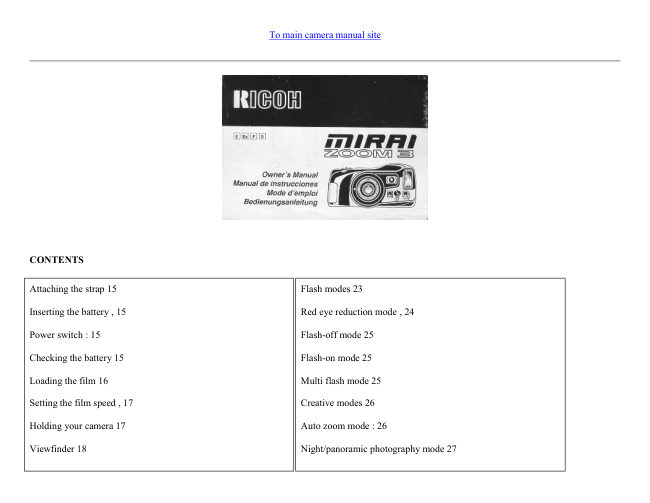
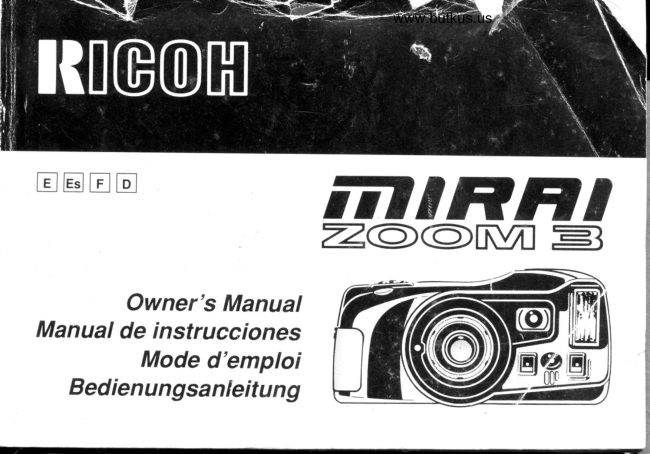
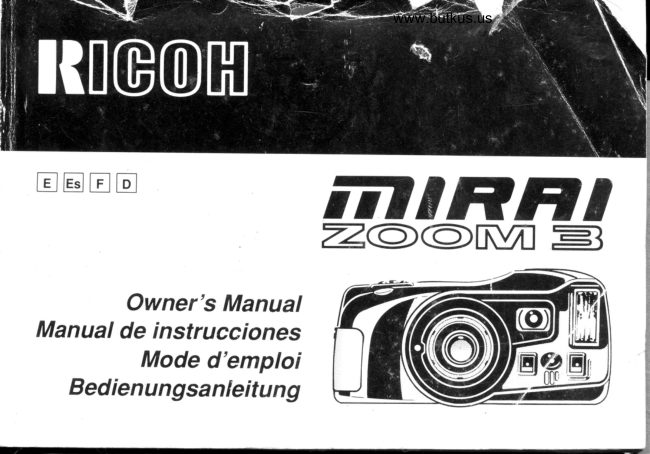
Ricoh Mirai 3 User manual
User manual for Ricoh Mirai 3. 31 pages in English. Read the original PDF, download or print a copy without registration.
31 pagesEnglish1.7 MB PDF
Loading your manual…Open PDF directly
Document details
- Brand
- Ricoh
- Model / document
- Ricoh Mirai 3
- Document type
- User manual
- Language
- English
- Pages
- 31
- File size
- 1.7 MB
- Category
- Film cameras
- Document date
- Not specified in catalog
Search available document text
Find a term, then jump to its page in the original PDF. Image-only pages may not be searchable; check the PDF for exact wording and diagrams.
Page 2 · Read text
To main camera manual site


CONTENTS


Attaching the strap 15                                           Flash modes 23

Inserting the battery , 15                                 Red eye reduction mode , 24

Power switch : 15                                                  Flash-off mode 25

Checking the battery 15                                         Flash-on mode 25

Loading the film 16                                            Multi flash mode 25

Setting the film speed , 17                                        Creative modes 26

Holding your camera 17                                    Auto zoom mode : 26

Viewfinder 18                                                Night/panoramic photography mode 27
View original page 2
Page 3 · Read text
www.butkus.us


Zooming the lens 18                                          Continuous shooting mode 27

Auto-focus shooting 19                           TV mode 28

Pre-focus shooting 20                                              Electronic remote control socket 29

Rewinding the film (Auto reverse) 20                              (Optional) Databack settings 29

Flash photography 21                                          Proper care of your camera 31

Auto backlight control/Auto fill flash 22                       Major specifications 32

Using the self-timer 22


We are most gratified that you have selected a RICOH camera. Before using your camera, please be sure to read these instructions carefully. We
suggest that you become familiar with your new camera by shooting and processing at least one roll of film before using your camera to record an
important occasion.
View original page 3
Page 5 · Read text
www.butkus.us


LOCATING THE CONTROLS


1. LCD Panel

2. Mode Button                                                   17. AF Monitor

3. Self-timer Button                                               18. Flash Monitor

4. Zoom Switch                                                   19. Film Take-up Spool

5. Shutter Release Button                                         20. Back Cover Latch
View original page 5
Page 6 · Read text
6. Strap Holder                                                   21. Film Guides

7. Remote Control Socket                                         22. Tripod Socket

8. Teleconverter Interlock                                         23. Battery Compartment Cover

9. Lens                                                           24. Battery Compartment Cover Latch

10. Distance Measuring Windows                                 25. Film Rewind Gear

11. Self-timer LED                                               26. Film Loaded Window

12. AF Auxiliary Light Window                                   27. Back Cover

13. Built-in Flash                                                 28. Film Cassette Chamber

14. Viewfinder Window                                           29. Power Switch

15. Manual Film Rewind Button                                   30. Visibility Adjustment Lever

16. Flash Mode Button                                            31. Viewfinder
View original page 6
Page 7 · Read text
www.butkus.us

ATTACHING THE STRAP


1. Run the end of the Strap down through the Strap Holder. (Fig. 1)

2. Then feed the end through the Shoulder Pad and the Buckle. (Fig. 2)
View original page 7
Page 8 · Read text
INSERTING THE BATTERY

The camera will not operate unless the battery is in stalled. It is important to make sure that the battery installed correctly.

1. Use a pen to push the Battery Compartment Cover Latch in the direction of the arrow and pull open the cover. (Fig. 3)

2. Insert the recommended 6 volt lithium battery, contact end first, checking that the + and - on the battery are aligned according to polarity diagram
inside the battery compartment. (Fig. 4)

3. Close the Battery Compartment Cover by pushing it in the direction of the arrow until it locks firmly in place. (Fig. 5)


* With the battery inserted correctly, the Battery Condition Mark      appears on the LCD Panel when the Power Switch is ON. (Fig. 6)

* Do not remove the battery from the camera until you are ready to replace it

Recommended' Replacement 6V Lithium Batteries Include:
Panasonic CR-P2p
Duracell XL DL223A (Made in U.S.A.),
Kodak K223LA, or equivalent

POWER SWITCH

Each time you slide the Power Switch in the direction of the arrow, it is switched OFF or ON, and vice versa. (Fig. 7)

CHECKING THE BATTERY


1. The     symbol is displayed on the LCD Panel when battery power is sufficient.

2. When the battery is nearly exhausted, the     symbol will appear. Replace with a new battery as soon as possible. (Use of flash at this time is not
recommended.)


3. When the battery is completely exhausted, the     symbol will be displayed. Replace with a new battery.
View original page 8
Page 9 · Read text
www.butkus.us


* Cold temperatures will reduce bakery efficiency. In freezing weather, the     symbol may turn off and only the       or     symbol may show

in the LCD Panel. When the camera returns to normal temperature, the Battery "All Right      symbol should reappear. If you are taking pictures in
cold weather, keep the camera warm and take it out only when you need it.

* If the bakery voltage is insufficient, the shutter may not release or the film may not advance completely. In the following cases, replace the battery:

(1) When the battery mark displays the C symbol.

(2) When the shutter does not release.

(3) When film advance and rewind cannot be done. (4) When the self-timer does not function.

* Obtain a replacement battery before removing the old battery. The camera is only capable of retaining memory (exposure number etc.) for about 10
minutes without a battery

LOADING THE FILM
Always avoid direct sunlight when loading the film.

1. Push the Back Cover Latch downward to open. (Fig. 8)

2. Load the film cassette into the Film Chamber and pull out enough film leader to extend past the mark of the film leader position. (Figs. 9-A, 9-B)

* If there is any dust on the inside lens surface, use a blower to blow the dust away before loading film.
View original page 9
Page 10 · Read text
3. Make sure the film stays within the Film Guides and lies flat. (Figs. 10, 11)

4. Press the Back Cover shut so that the Back Cover Latch returns to its original position. The film is automatically advanced until number "1"
appears on the LCD Panel. (Fig. 12)

5. If the film has not advanced correctly and is not taken up onto the Film Take-up Spool, the Exposure Counter will blink (Fig. 13), and the LCD
Panel will not show that the film has advanced to frame number "1", as mentioned in the step 4. The shutter release will also lock, so you cannot take
a picture until the film is loaded properly.
View original page 10
Page 11 · Read text
www.butkus.us

Reload the film by following steps 1 - 4 shown above.

* You can confirm if there is film in your camera or not by observing the Film Loaded Window or the Exposure Counter on the LCD Panel. (Fig. 14)


* You can confirm that the film-wind or rewind is working properly by observing the changing of the frame numbers on the LCD Panel.

* You can load film in your camera even when the Power Switch is OFF However, the loading sign will disappear after 5 sec.

* Do not touch the inner lens with your fingers or the edge of film. (Fig. 15)

SETTING THE FILM SPEED
DX-coded film cassettes have black-and-silver patterns corresponding to film speeds that the camera reads and automatically sets. Your camera
accepts OX films with speeds ranging from ISO 64 to 3200. Before loading your film, please check whether the cassette is DX-encoded or not. (Fig.
16)

When using DX-coded films, seeing the film speed is not necessary. Your camera automatically sets the correct film speed.

When using a film without OX code, your camera will automatically set itself to ISO 100.

HOLDING YOUR CAMERA
1. Always use both hands to steady your camera. (Fig. 17)

* When holding the camera vertically always position it with the flash at the top. (Fig. 18)

* Be careful not to place your fingers over the lens, flash or focusing windows. (Fig. 19)
View original page 11
Page 12 · Read text
VIEWFINDER


Visibility Adjustment
Finder visibility can also be adjusted to give a clear image for the long and short sighted.

1. Move the Visibility Adjustment Lever on the side of the finder up and down until the image is clearest. (Fig. 20)
(1) Field of View Frame (Fig. 21)
View original page 12
Page 13 · Read text
www.butkus.us

The subject (such as people or scenery) you wish to photograph should be set within this frame.

Parallax Correction Marks (Close focusing)
When taking a picture of a subject that is between 0.7m -1.2m (2.3 - 3.9ft.) away from your camera, the subject should be positioned within these
marks. Then, adjust the focus to the subject using the Auto Focus Frame (2)'

Auto-Focus Frame
The auto-focus system focuses automatically on any subject that appears within this small frame.

ZOOMING THE LENS
The built-in 35 - 1 05mm zoom lens lets you get more in the picture, or closer to your subject without changing your position. This allows you to
easily select the composition that best suits your subject.

To zoom the lens, just slide the zoom switch (Fig. 22) in either direction until your subject is framed properly.

* When zooming the lens, keep your fingers away from the moving lens components.

* When switching the camera's Power MULE the lens will return to its storage position automatically.

* After about 3 minutes of inactivity, the lens will return to the wide-angle-position and the display on the LCD panel will disappear.

AUTO-FOCUS SHOOTING

1. Set the subject you wish to take within the Auto Focus Frame in center of the Viewfinder. (Fig. 23)

2. When you press the Shutter Release Button halfway the AF Monitor will light up. (Fig. 24) If the subject is closer than 0.7m (2.4ft.) the AF-
Monitor will blink and the shutter will lock. (Fig. 25)

3. Gently press the Shutter Release Button down to take the picture. The film will advance automatically as soon as the Shutter has been released.

* Under extreme close-up conditions, the AF Monitor may not warn when you are too close to the subject. Therefore, make sure the subject is at least
0.7m (2.4ft.) away from the camera.

* Avoid pressing the Shutter Release Button too abruptly to avoid camera shake or possible misoperation.
View original page 13
Page 14 · Read text
* Be careful not to accidentally cover the Distance Measuring Windows at the front of your camera, as this will cause incorrect focusing.

* Keep the Distance Measuring Windows clean to ensure accurate focusing. If they get dirty, they should be wiped clean with a cotton swab or soft
cloth.

* The AF system uses an actual image of the subject to focus properly. Under low light conditions, an assist beam will automatically light
momentarily to provide a bright target for the AF system to see.

* There may be rare cases when accurate focusing is difficult or impossible. (For instance, with dark subjects that do not reflect light well,
completely uniform subjects, or subjects taken under low light conditions through glass.) In these cases, it is best to use the Pre-Focus technique (see
page 20) to "lock" the focus on a more "normal" subject at the same distance. While holding focus, turn your camera back to the original subject and
shoot. (See PREFOCUS SHOOTING for more details.)
View original page 14
Page 15 · Read text
www.butkus.us


PRE-FOCUS SHOOTING
When the subject you wish to focus on is not located within the Auto-Focus Frame or is difficult to focus on, you should use pre-focus shooting.

When the subject is not within the Auto-Focus Frame:
1. For example, to photograph two or more people, there may be cases where none of your main subjects will be within the Auto-Focus Frame in the
center of the Viewfinder. If you release the shutter then, only the background will be in focus, and the people, who are the main subject, will be out-
of-focus. (Fig. 26)

2. Move the camera to one side so that one of the people is within the Auto-Focus Frame.
View original page 15
Page 16 · Read text
Press the Shutter Release Button halfway so that the AF Monitor lights up. Keep holding your finger halfway down on the Shutter Release Button.
(Fig. 27)

3. Now return the camera to its original position so that your main subjects are in the Field of View Frame again, and press the Shutter Release
Button fully to take the picture. (Fig. 28)

When the subject is difficult to focus on:

1. When you are photographing subjects that are difficult to focus on (such as a black dog or a uniform surface), find another subject with visible
contrast at the same distance from the camera. You can prefocus on that subject in the same way as described above.

* If you are shooting through a window under low light conditions aim the camera at a slight angle to the glass to minimize any direct reflection of
the autofocus assist beam.

* When you remove your finger from the Shutter Release Button, the pre-focus setting is cleared, so that you can pre-focus again as many times as
you wish.

REWINDING THE FILM (AUTO REVERSE)
1. After the end of the film has been reached, the film will automatically rewind.

2. Film rewinding is indicated by the frame counter counting backwards.

3. When the film is fully rewound, the motor stops automatically and "E" is displayed on the LCD Panel. (Fig. 29) Open the Back Cover to unload
the film.

* If you wish to rewind the film before reaching the end of the film, push the Manual Film Rewind Button with a pen, etc. (Fig. 30)

* If you push this button when the film is being rewound, the rewound film will still leave part of the film leader extended out of the film cassette.
(You may push the film completely back into the cassette to avoid accidentally reloading it again at a later time.)

* The shutter release is locked when "E" is displayed.

* When removing film, be careful not to touch the inner lens surface with your fingers or the edge of film
View original page 16
Page 17 · Read text
www.butkus.us

FLASH PHOTOGRAPHY

1. Whenever the camera is turned on, the flash immediately charges. Then, whenever additional light is required, the built-in Flash automatically
activates.

* Recommended Flash Shooting Range


(ISO 100)                                       (ISO 400)

Telephoto: 0.7m- 3.5m (2.3ff.-11.5ft.)                     Telephoto: 0.7m - 7.1m (2.3ft. - 23.3ft.)

Wide angle: 0.7m - 5.5m (2.3ft. - 180ft.)               Wide angle: 0.7m -11.0m (2.3ft. - 36.1ft.)


2. When the flash is still charging, the Red Flash Monitor will blink. (Fig. 31) Wait until the RED-LCD turns off in order to use the flash.

* When the flash is used, there may be cases in which your subject's eyes appear red in the finished photograph. This occurs when the retina reflects
the flash light, although the intensity of the phenomenon differs for each individual as well as subject distance and how light or dark the picture
taking environment is.

To minimize the red eye effect, select the Red Eye Reduction mode discussed on page 24.


AUTO BACKLIGHT CONTROL/AUTO FILL FLASH

When taking pictures of backlit subjects, important details are often lost in the shadows. The Mira Zoom 3 automatically compensates for these
lighting situations. If the subject is backlit and is about 4.5 meters (1 5 ft.) or more from the camera Auto Back-Light Control (ABLC) will be
activated to increase over-all exposure. If the subject is about 4.5 meters (15ft.) or less from the camera, the flash activates automatically and the
shadows are lightened up using automatic daylight fill-flash. Thus with backlit subjects, natural-looking pictures can be taken easily and
automatically (Fig. 32)

USING THE SELF-TIMER

1. Compose your picture with the camera on a steady support.

2. Press Self-timer Button. The Self-timer LED on the front of the camera will light steadily for approximately 8 seconds. Then the LED will blink
for about 2 seconds to indicate that the shutter is about to release. After a total of about 10 seconds have elapsed, the shutter will release. (Figs. 33,
34)
View original page 17
Page 18 · Read text
* If you wish to stop the self-timer once it has started, slide the Power Switch ON or press the Self-timer Button again.

Using the Self-timer for Flash Photography:


a. When the Self-timer Button is pressed the built in Flash will fire automatically whenever there is insufficient light.

b. The flash will charge during the 10 sec. countdown.
View original page 18
Page 19 · Read text
www.butkus.us

* You may not be able to activate the self-timer when the flash is just beginning to recharge. Wait 2-3 seconds and try again.

* If the distance between subject and camera is too close, the AF Monitor will blink. At that time, the self-timer will not activate. Move back a little
and try again. (See page 19 for more information regarding Autofocusing.)

* Too-Close Warning Lamp (AF Monitor) will blink only when pushing Self-timer Button and/or the Shutter Release Button.

Using the Self-timer for Pre-focus Photography:

a. Select the subject you wish to pre-focus on. Move the camera so that it is in Auto-Focus Target.

b. Press the Shutter Release Button halfway down to adjust and lock-in the focus and reposition the camera if necessary.

c. While holding the Shutter Release Button halfway press the Self-timer Button to activate the self-timer.

d. The focus will remain fixed at the locked-in distance until the photograph is taken.

Taking Two Self-Timer Pictures

The Mirai Zoom 3 will take two self-timed shots-one after another-when the self-timer is used in conjunction with the continuous shooting mode
(See page 27).

FLASH MODES

Flash Mode Button

In addition to fully automatic flash photography, this camera also has a number of built-in creative flash photography modes.

1. Switching to each flash mode is done by pressing the Flash Mode Button so that the mark for the selected mode is displayed on the LCD Panel.

2. In order to cancel any selected mode, press the Flash Mode Button one or more times to erase the mode indicator on the LCD Panel, and enter the
normal automatic flash photography mode.
View original page 19
Page 20 · Read text
The selection of creative flash modes are done in the following order.


Auto flash mode (No LCD indicator)

Auto flash red-eye reduction mode 3

FLASH-OFF mode

FLASH ON mode

Multi-flash mode


RED EYE REDUCTION MODE

Minimizing the Red-Eye Effect

Selecting this mode makes it possible to minimize the red-eye effect that sometimes occurs when taking portrait photographs with flash. This makes
it easy for anyone to take natural-looking portraits of people.


1. Press the Flash Mode Button until the   symbol appears on the LCD Panel. (Fig. 35)

2. Press the Shutter Release Button. The flash system will begin its pre-flash cycle. After a brief delay, the main flash will fire. The entire sequence
will take about one second.

* Be sure to hold the camera still after pressing the Shutter Release Button.
* You may wish to advise your subjects to wait for the second flash.
* This mode does not cancel when the camera is switched off. (All other flash modes will cancel and return the Camera to full Automatic flash.) To
cancel this mode, press the mode button again for any other selection.

Reducing Flash Output

The flash adjusts the flash brightness to prevent excessively overexposed pictures when photographing, for example, female subjects with light skin

at close range. This function works similarly in any of   red eye reduction mode,    flash-on mode, and auto flash mode.
View original page 20
Page 21 · Read text
www.butkus.us

FLASH-OFF MODE
This mode forcibly prevents automatic firing of the flash, thus allowing available light photography in museums, churches, etc. where flash
photography is prohibited.


1. Press the Flash Mode Button until the   symbol appears on the LCD Panel. (Fig. 36)

2. Press the Shutter Release Button and the shutter will be topped without flash (the minimum shutter speed is approx. 1/4 second).

* To cancel this mode, press the Flash Mode Button until there is a different mode symbol (or none) on the LCD Panel, or slide the Power Switch
OFF.

FLASH-ON MODE

This forcibly trips the flash when you want to photograph subjects with sunlight to their side or back. It lets you take more natural looking pictures by
softening (filling in) harsh shadows.


1. Press the Flash Mode Button until the   symbol appears on the LCD Panel. (Fig. 37)

2. Press the Shutter Release Button. There will now be a flash every time the shutter is tripped.

* The camera will follow a daytime SYNCHRO-Sunlight Exposure program in cases of bright light.

* The camera will go to slow synchro photography in cases of dim light.

* To cancel this mode, press the Flash Mode Button until there is a different mode symbol (or none) on the LCD Panel, or slide the Power Switch
OFF.
View original page 21
Page 22 · Read text
MULTI FLASH MODE


The flash can be used for high-speed multi-flash, strobe-effect photography. The resulting picture will include four separate "frozen" images of a
moving subject.


1. Press the Flash Mode Button so that the     mark is displayed on the LCD Panel. (Fig. 38)

2. When pressing the Shutter Release Button, 4 closely-spaces flashes will fire during the approximately 1/6 second that the shutter is open.
View original page 22
Related documents and language editions
From the M. Butkus archive. Original publisher and archive notices are retained.
Check the model and edition against your equipment.
PDF verified 2026-10-10.